IPTV Works on One Device but Not Another: Complete Diagnostic and Resolution Guide
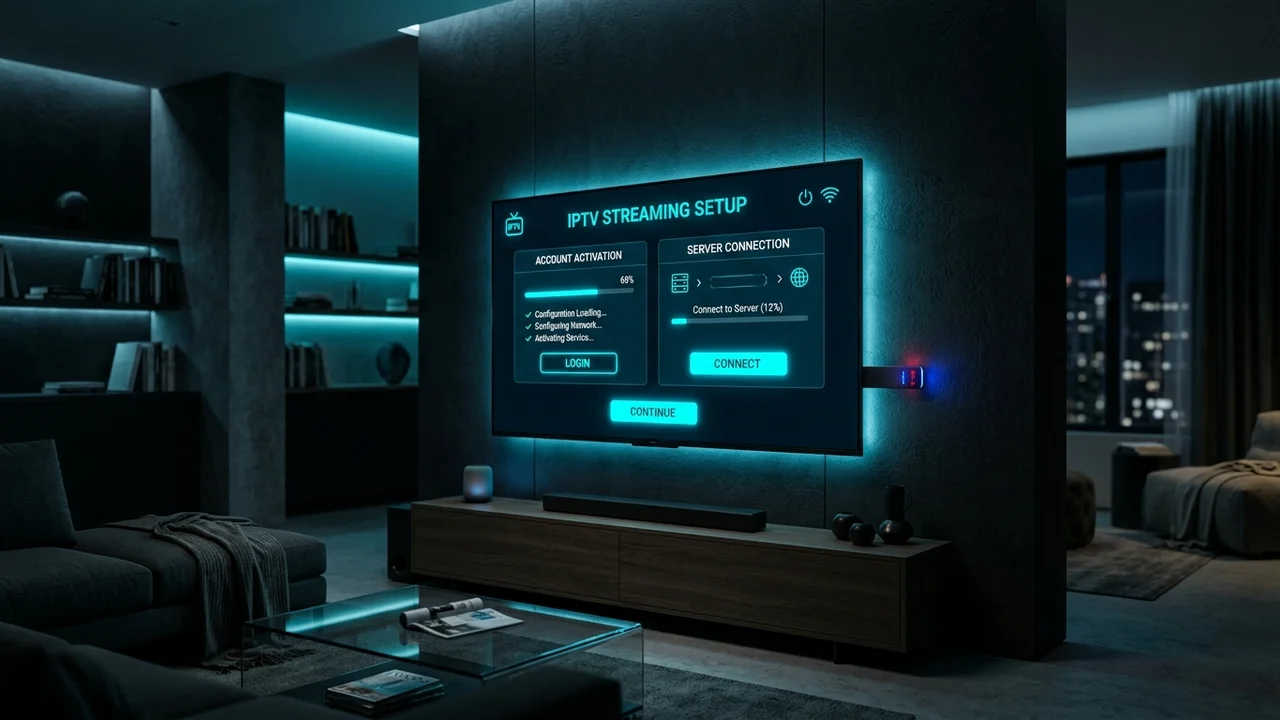
It is one of the most confusing problems in streaming: you set up your IPTV account, and it works perfectly on your smartphone. You see the channels, the video is smooth, and everything looks great. But when you try to use the exact same account on your Smart TV, the app freezes, the playlist refuses to load, or the video buffers constantly.
Why does IPTV work flawlessly on one device, but completely fail or behave differently on another?
When IPTV works on Device A but fails on Device B, you have actually been given a massive troubleshooting advantage. This situation proves that your subscription is active, the provider's servers are online, and your internet connection can support the stream. The problem is localized.
In this comprehensive guide, we will explore why IPTV behaves inconsistently across different hardware and provide the exact steps to get your service running smoothly on all your screens.
Stream 2026 NFL Games in 4K & 60FPS
Get instant access to over 50,000 live sports channels, 120,000+ movies & series, and 24/7 priority sports coverage across all your favorite devices.
1. Why Does IPTV Work on One Device but Not Another?
To understand why this happens, you must realize that different streaming devices do not have identical environments. A high-end smartphone and a five-year-old Smart TV might both have a screen and Wi-Fi, but under the hood, they are entirely different machines.
Different devices do not necessarily have:
- The same processing power or memory.
- The same operating system (e.g., Android vs. Tizen vs. WebOS).
- The same IPTV application (some apps only exist on specific platforms).
- The same network connection (even within the same house).
- The same video-decoding capabilities (handling high-bitrate video).
Therefore, punching in identical IPTV credentials does not guarantee identical playback behavior. The way your device processes the data stream matters just as much as the data itself.
2. What Does "Not Working" Mean?
Before you start changing settings randomly, you must identify what "not working" actually means on the problem device.
Does the situation look like this?
- App does not open: A software crash on the device.
- Login fails: Incorrect credentials or a provider device limit.
- Playlist does not load: Network blockage, app configuration error, or a typo in the portal URL.
- Channels do not load: A connection issue between the app and the server.
- Video buffers: A network speed, Wi-Fi, or device performance issue.
- Video freezes: A decoding error or sudden network drop.
- Audio works but picture does not: A video codec compatibility problem.
Identifying the exact symptom will save you hours of unnecessary troubleshooting.
3. Confirm You Are Testing the Exact Same IPTV Service
It sounds obvious, but you must make sure you are comparing the same environment.
When testing, ensure that you are using the exact same:
- Subscription and account details.
- Playlist URL or Portal Address.
- Username and Password.
- Server connection.
If you are certain that the service works on Device A using these exact details, but fails on Device B, you can confidently proceed with the device-specific troubleshooting steps below.
4. Check Device and App Compatibility
IPTV applications behave very differently depending on the hardware platform.
For example, a dedicated Android TV Box has access to the Google Play Store, allowing you to install premium, highly optimized IPTV players like TiviMate or IPTV Smarters Pro.
Conversely, a proprietary Smart TV (like older Samsung or LG models) relies on a restricted app store. The IPTV apps available on these TVs are often web wrappers—meaning they are basically running in a hidden web browser rather than as a native application. These web-based apps often struggle with large playlists or high-bitrate video, which is why a stream might buffer on your TV but play perfectly on your Android phone.
5. Check the IPTV Player on the Problem Device
If the hardware is capable, the application itself might be the bottleneck.
If the IPTV player on the second device is crashing or failing to load streams:
- Fully close and restart the app.
- Check for updates in the device's app store.
- Verify that the playlist or Xtream Codes login was entered without any typos (pay attention to uppercase/lowercase letters and trailing spaces).
- Crucial Step: Try downloading a different compatible IPTV player on the problem device. If the service works in App X but fails in App Y on the same TV, you have proven the original app was the issue.
For more information on selecting software, read our guide on the best IPTV Players.
6. Check Whether the Two Devices Use the Same Network
This is an extremely common oversight. Just because two devices are in the same house does not mean they have the same network connection.
Consider this scenario:
- Device A (Your Phone): Is connected to the fast 5 GHz Wi-Fi band and works perfectly.
- Device B (Your Firestick): Is tucked behind the TV, connected to the slower, more crowded 2.4 GHz Wi-Fi band, and buffers constantly.
You must compare the actual connection used by each device. An IPTV stream that requires 25 Mbps of continuous data will fail if a device is struggling to pull a stable 10 Mbps due to walls or interference.
7. Test Internet Connectivity on the Problem Device
The fact that your smartphone can stream IPTV does not prove that your Smart TV has an equally stable connection.
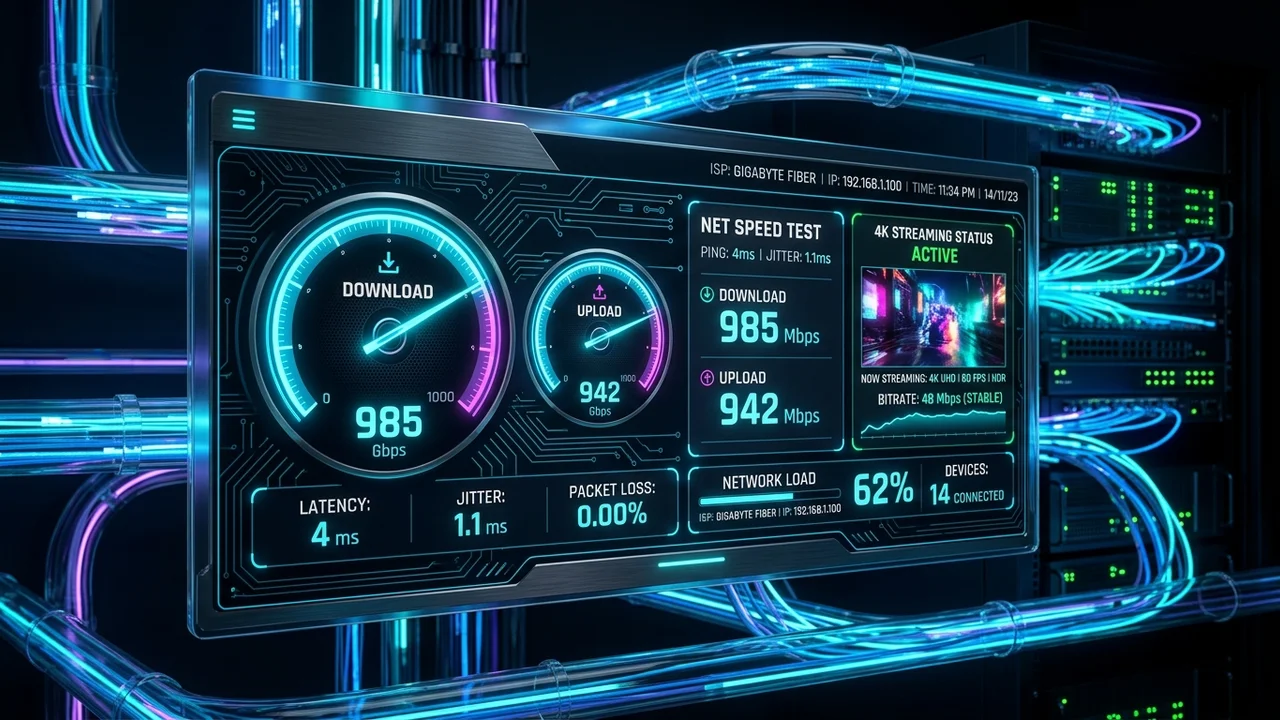
Run a speed test directly on the device that is struggling. Look specifically at:
- Download speed (Is it consistently high?)
- Connection stability (Does the speed jump wildly?)
- Latency and Ping (Are there massive delays?)
- Wi-Fi signal strength (Is the device too far from the router?)
If the problem device shows a poor connection while the working device shows a strong one, the issue is purely environmental. For context on required speeds, read our article on what internet speed you need for IPTV.
8. Try Ethernet on the Problem Device
If the device that is failing supports an Ethernet connection (like a Smart TV or Android box), plug it directly into your router.
Wired connections bypass all Wi-Fi interference, signal degradation, and wireless congestion. If your IPTV suddenly works flawlessly after switching from Wi-Fi to Ethernet, you have found the root cause: the wireless connection to that specific device was too unstable to sustain a live video stream.
9. Restart the Device That Is Not Working
Sometimes, the simplest solution is the correct one. Operating systems can develop memory leaks, network adapters can hang, and background processes can consume resources.
To properly restart:
- Stop the IPTV playback and close the app.
- Power off the device (or unplug it from the wall for 30 seconds).
- Power it back on and wait for the network to fully reconnect.
- Reopen the IPTV app and test the same channel.
A full restart clears the RAM and forces the device to establish a fresh connection to your router.
10. Update the Device Software
Compatibility problems frequently occur when applications and operating systems are out of sync.
If your IPTV works on a brand-new smartphone but fails on a Smart TV from 2018, the TV's operating system might lack the necessary security certificates or video codecs required by modern IPTV servers. Check your device's settings menu and install any pending firmware or OS updates.
Stream 2026 NFL Games in 4K & 60FPS
Get instant access to over 50,000 live sports channels, 120,000+ movies & series, and 24/7 priority sports coverage across all your favorite devices.
11. Check Device Storage and Performance
A modern streaming device needs free space to operate efficiently.
If your Firestick is 99% full of downloaded apps and cache data, it will not have enough memory to temporarily buffer live video. The stream will stutter, pause, or crash entirely. Compare this to your phone, which likely has gigabytes of free RAM and storage, allowing the stream to play effortlessly.
Delete unused applications, clear system cache, and ensure the device has at least 15-20% of its total storage free.
Technical Analysis: Silicon Discrepancies Between Phones, TVs & Streaming Sticks
To understand why an IPTV subscription functions flawlessly on your smartphone while stuttering or refusing to load on your Smart TV, you must examine the vast hardware performance gap between consumer electronic categories:
1. The Mobile Smartphone Advantage
Modern smartphones (such as iPhones and flagship Android devices) are equipped with state-of-the-art processors (Apple A17/A18, Qualcomm Snapdragon 8 Gen 3) built on 3nm silicon:
- Massive Processing Overhead: Boasts 8GB to 12GB of ultra-fast LPDDR5 RAM.
- Universal Hardware Codec Support: Dedicated silicon hardware decoders for H.264, HEVC Main 10, AV1, and VP9.
- Premium Wi-Fi Architecture: 2x2 or 3x3 MIMO Wi-Fi 6E/7 antennas that maintain strong signal throughput even through concrete walls.
- The Result: Your phone effortlessly decodes any incoming stream container, regardless of how poorly encoded or high-bitrate the video feed is.
2. The Budget Smart TV Reality
In stark contrast, television manufacturers prioritize display panels (OLED, Mini-LED, QLED) while cutting costs on internal computing components:
- Constrained System Memory: Many brand-new 4K Smart TVs possess only 1.0 GB to 1.5 GB of total RAM, which must be shared between the television's underlying operating system (Tizen, webOS) and all running apps.
- Budget Media Decoders: The television's System-on-a-Chip (SoC) often lacks hardware licenses for specialized audio formats (such as Dolby Digital AC3 or DTS). When your IPTV player encounters an AC3 audio stream on an LG or Samsung TV, the TV cannot decompress the audio, leading to a "video with no sound" error or a complete playback crash.
- Subordinate Wi-Fi Antennas: Smart TV Wi-Fi chips are frequently entry-level 1x1 SISO modules mounted behind metal chassis backplates, resulting in high packet loss and jitter.
Guest Networks, Dual-Band Isolation & VLAN Conflicts
If both devices are in your home, they may not actually be communicating with the internet across the same network environment:
1. The Accidental "Guest Network" Trap
Modern home mesh routers (Eero, Netgear Orbi, Google Nest Wi-Fi) feature isolated Guest Networks:
- If your smartphone is connected to your primary
Home_5GHznetwork while your Smart TV was accidentally connected toHome_Guest, your TV's traffic is subject to strict firewall isolation rules. - Many router guest networks block custom media protocol ports (such as ports 8080, 8443, or 25461) commonly used by streaming middleware, preventing your Smart TV from connecting to provider servers.
2. The 2.4GHz vs. 5GHz Frequency Mismatch
Even on the same router, operating on different wireless frequency bands creates dramatic differences in streaming stability:
- The Phone on 5GHz: Your smartphone automatically roams to the uncongested 5GHz band, enjoying 350 Mbps throughput and 2ms jitter.
- The TV on 2.4GHz: Your Smart TV, located behind a wall, connects to the legacy 2.4GHz band. Plagued by microwave interference and packet collisions with neighboring Wi-Fi networks, real throughput drops to 12 Mbps with 8% packet loss—causing the stream to buffer continuously.
Active Session Concurrency: The Hidden Single-Device Block
One of the most frequent customer support scenarios at IPTVMap occurs when a subscriber tests their playlist on their phone during their commute, arrives home, turns on their living room Smart TV, and discovers that channels will not load:
- The Stale Socket Lock: Single-device subscription plans permit exactly one active streaming session at any given moment.
- If you close your IPTV player app on your phone by swiping it away without tapping the "Stop" or "Back" button, the connection socket to the streaming server may remain active in the cloud for up to 3 to 5 minutes before timing out.
- When your Smart TV attempts to open the same channel, the server detects a second concurrent stream request on a single-connection account and responds with an HTTP 403 Forbidden error.
- The Fix: Always exit out of active channel playback on Device A before attempting to stream on Device B.
Device-by-Device Optimization Matrix
The table below outlines the optimal configuration settings to resolve playback failures across specific hardware platforms:
| Device Platform | Common Failure Symptom | Primary Technical Cause | Immediate Recommended Fix |
|---|---|---|---|
| Samsung Smart TV (Tizen) | Video plays but zero sound | TV lacks native AC3 / DTS decoder license | Inside IPTV app, set Audio Decoder to Software (SW) / PCM |
| LG Smart TV (webOS) | App crashes to home screen on 4K feeds | System RAM exhausted by large playlist | Hide unused foreign channel categories in playlist settings |
| Amazon Firestick | Freezes after 10 minutes of smooth playback | CPU thermal throttling behind hot TV panel | Connect using the flexible HDMI extender dongle |
| Android TV / Google TV | "Stream Format Not Supported" error | Default ExoPlayer engine fails on container | Switch player engine to VLC Player Engine |
| Apple TV 4K | Audio out of sync with video | Frame rate mismatch with display | Enable Match Frame Rate & Match Dynamic Range in tvOS |
| Windows PC / Mac | Channel buffers on web browser | Browser lacks native H.265 hardware decoding | Use dedicated VLC Player or IPTV Smarters desktop app |
Operating System Sandbox Policies: webOS vs. Android TV Permissions
Another subtle technical reason an IPTV service behaves differently across hardware is operating system security sandboxing:
1. LG webOS and Samsung Tizen Application Sandboxing
Proprietary television operating systems enforce stringent background execution limits:
- Background Process Killing: When you switch from your IPTV player to the TV settings menu or another input on an LG or Samsung TV, the operating system instantly freezes the player process in memory to preserve system stability.
- Network Socket Termination: If a socket remains idle for even 30 seconds during background suspension, webOS drops the connection without notifying the app. Returning to the IPTV player results in a frozen screen or "Cannot Connect" error until the channel is re-selected.
2. Android TV & Fire OS Background Flexibility
In contrast, Android-based operating systems allow background services to maintain active network sockets:
- Media players on Android TV can continuously download background EPG guide schedules and buffer incoming video packets while you browse other system menus, resulting in a much more resilient viewing experience.
Frequently Asked Questions
12. Check Video Decoding and Playback Compatibility
At a highly technical level, live video is compressed (encoded) so it can be sent over the internet, and your device must decompress (decode) it to display the picture.
Different devices handle this differently:
- Hardware Decoding: The device uses a dedicated microchip to process the video effortlessly.
- Software Decoding: The device forces the main processor to do the work, which can cause overheating and stuttering.
If an IPTV channel uses a modern format (like HEVC/H.265), a newer device will decode it instantly. An older device might lack the hardware support, resulting in audio playing while the screen remains completely black. If your IPTV player has an option in its settings to switch between "Hardware (HW) Decoding" and "Software (SW) Decoding," try toggling it.
13. Test a Different Stream Quality
Compare the performance of different resolutions on the failing device.
If standard HD (720p) works perfectly on your TV, but Full HD (1080p) or 4K channels constantly buffer or fail to load, you are hitting a hardware or network bottleneck specific to that device.
A high-end tablet might process a heavy 4K stream with ease, while a budget streaming stick overheats trying to do the same job. If you are experiencing this, you can read more in our guide on IPTV buffering after a few minutes.
14. Test the Exact Same Channel on Both Devices
This is a critical rule of troubleshooting. When comparing two devices, you must test the exact same live channel or VOD movie.
If you test a local news channel on your phone (which works) and an international sports feed on your TV (which fails), you are not comparing the devices; you are comparing the channels.
If you use the exact same channel:
- Device A works → Device B fails: The issue is the device, app, or local network.
- Device A fails → Device B fails: The issue is the specific stream or the IPTV provider.
15. Recheck Your IPTV Login or Playlist Configuration
Typographical errors happen. It is entirely possible that you entered your playlist URL perfectly on your phone, but accidentally added a space or misspelled a word when typing it into your TV with a clunky remote control.
Double-check your portal address, username, and password. Even a single incorrect character will cause the playlist to fail to load on the second device.
16. Check Whether Your IPTV Service Has Device Limits
This is a very common reason for a second device failing. Many IPTV subscriptions allow you to install the application on multiple devices, but strictly limit the number of simultaneous connections.
If your subscription only allows one connection, and you leave the stream running on your phone while trying to open the app on your TV, the provider's server will actively block the TV. The TV will either show a connection error or fail to load the channels entirely. Check your provider's terms to see if you need to purchase additional connections.
17. Check Whether a VPN Is Used on Only One Device
If you utilize a Virtual Private Network (VPN) for privacy or routing, ensure the configuration is consistent.
If your phone has a VPN active (routing traffic through a different server) while your Smart TV connects directly to your ISP, the two devices are taking completely different paths to the IPTV server. One path might be fast and stable, while the other is congested or blocked by your internet provider. Testing both devices with the exact same network configuration will help isolate the cause.
Device-Specific Troubleshooting Scenarios
IPTV Works on Phone but Not Smart TV
Smart TVs often have weaker Wi-Fi receivers than premium smartphones. Furthermore, native Smart TV apps are frequently less robust than Android/iOS apps.
- Fix: Connect the TV via Ethernet, or purchase a dedicated streaming device (like an Android TV box) and plug it into the TV's HDMI port to bypass the TV's internal software.
IPTV Works on Smart TV but Not Firestick
If the TV works but the Firestick fails, the Firestick is likely suffering from Wi-Fi interference (being hidden behind the large metal panel of the TV) or lacks storage space.
- Fix: Use the HDMI extender cable that came with the Firestick to move it away from the back of the TV, and delete unused apps to free up memory.
IPTV Works on Firestick but Not Android TV Box
If a dedicated Android box is failing, check the app configuration. Android boxes allow for extensive customization, which means settings can easily be misconfigured.
- Fix: Clear the IPTV app cache in the Android settings, update the device firmware, and try toggling the hardware decoder settings in the IPTV player.
IPTV Works on One TV but Not Another
If two TVs in the same house behave differently, the issue is almost certainly network distance or operating system differences.
- Fix: Run a speed test on the failing TV to confirm Wi-Fi strength. Ensure both TVs are running the exact same IPTV application (if possible).
What the Result of Your Test Tells You
Use this diagnostic table to guide your next steps:
| Test result | What to investigate |
|---|---|
| Works on Device A but not B | Device hardware / app / network / configuration |
| Same channel works on A but not B | Device compatibility or configuration |
| B works on Ethernet but not Wi-Fi | Wi-Fi interference / signal strength |
| B works with another IPTV player | Original app software / decoder settings |
| B works at lower stream quality | Device processing power / network bandwidth |
| B fails while A works on the same Wi-Fi | Device hardware or app becomes much more likely |
| Both devices fail simultaneously | Network outage or provider service issue |
| App opens but channels do not load | Playlist URL typo / account limit / configuration |
| Video loads but freezes repeatedly | Network drops / device decoding limits |
| Audio works but picture remains black | Decoder configuration / video codec compatibility |
Quick Fix Checklist
If you need to get your second device working quickly, follow this order:
- Confirm the exact same IPTV account is being used.
- Test the exact same live channel.
- Check the failing device's internet connection via a speed test.
- Compare Wi-Fi versus Ethernet connections.
- Restart the failing device completely.
- Force close and restart the IPTV application.
- Check for app and operating system updates.
- Clear storage space and background apps on the device.
- Try downloading a different, compatible IPTV player.
- Test a lower resolution stream (e.g., HD instead of 4K).
- Double-check the playlist URL for typos.
- Check if your VPN configuration differs between devices.
- Verify if your IPTV subscription restricts simultaneous connections.
- Test the service on a completely different network (like mobile data) to rule out ISP blocking.
- If the issue remains isolated to one device despite all software checks, consider upgrading the hardware.
Using IPTVMap Across Your Devices
When an IPTV service works on one device but fails on another, it is almost always a localized hardware, software, or network configuration problem. By systematically testing the connection, the app, and the hardware, you can easily identify the bottleneck.
If you are looking for a service designed for broad compatibility, IPTVMap is built to perform. The IPTVMap service utilizes modern streaming infrastructure that integrates seamlessly with premium IPTV players across all major platforms, from Smart TVs and Android boxes to mobile devices.
We invite you to explore our flexible subscription plans to find the right fit for your home entertainment setup. You can browse our extensive channels directory, review our devices and setup guides for compatibility information, or check out our FAQ for more technical insights. If you need assistance configuring a new device, our dedicated contact support team is always ready to help you get the most out of your viewing experience.