IPTV Audio and Video Out of Sync? How to Fix Lip-Sync Delays in 2026
When watching live television or video-on-demand content through Internet Protocol Television (IPTV), few technical issues are as jarring as a timing misalignment between sound and picture. You are watching a broadcast, but the words spoken by an actor or news presenter do not match the movement of their lips. Or perhaps during a live football match, you hear the referee's whistle or the crowd's reaction a split second before the physical action appears on your screen.
When IPTV audio and video are out of sync, it creates a distracting viewing experience commonly known as an audio-video synchronization offset or lip-sync problem. Unlike streaming freezes, spinning wheels, or pixelated picture drops, an audio synchronization issue can occur even when your internet connection is operating at peak speed and the video feed is streaming smoothly without buffering.
When facing IPTV lip sync problems, viewers often assume their streaming provider is at fault or that their internet speed is insufficient. However, live IP media streaming relies on distinct audio and video decoding pipelines, display processing engines, and audio transport hardware—each of which can introduce microsecond timing delays.
In this guide, we will break down what causes an IPTV audio delay, explain the crucial technical differences between audio arriving before versus behind the picture, outline a diagnostic workflow to isolate the culprit, and provide step-by-step solutions to fix lip-sync issues across Smart TVs, Amazon Firesticks, Android TV devices, Bluetooth audio gear, and external soundbars.
What Does "Audio and Video Out of Sync" Mean?
To understand how to fix a lip-sync issue, it helps to establish what audio-video synchronization represents in digital media broadcasting.
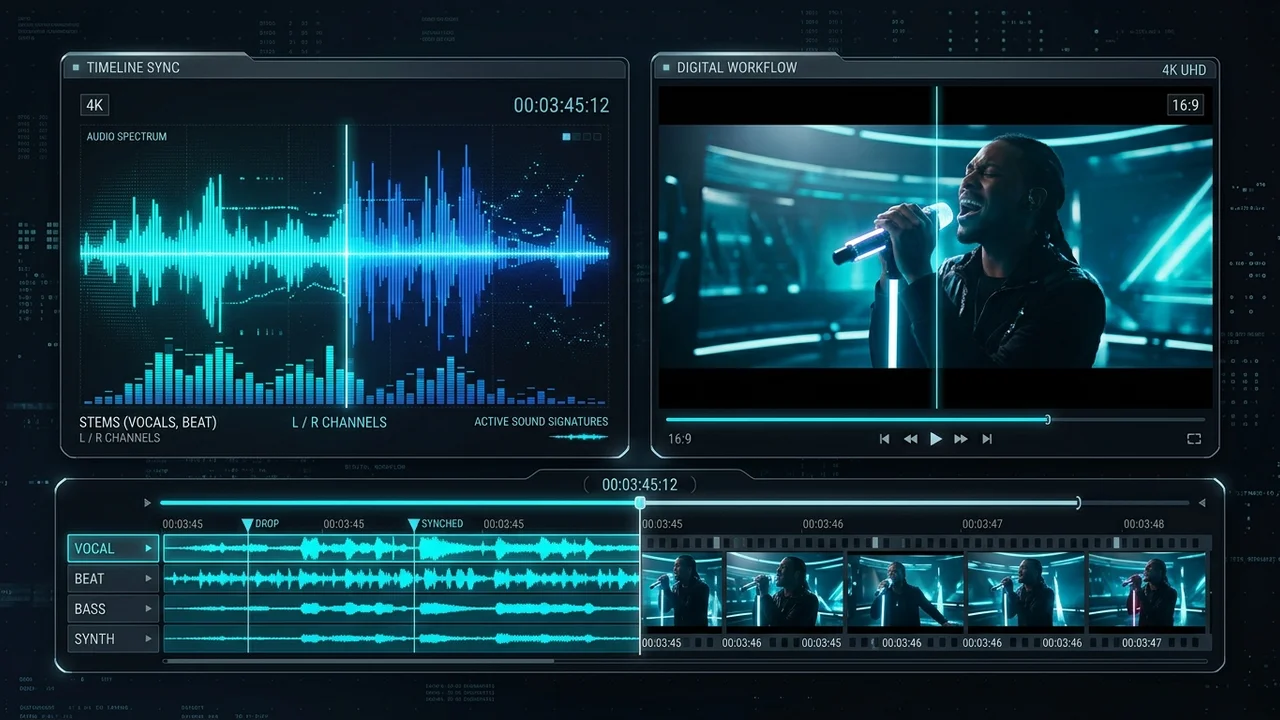
In television engineering, audio-video synchronization (A/V sync) is the precise temporal alignment of the audio track with the corresponding video frames. When a live stream is broadcast, video and audio are encoded into separate data packets, stamped with synchronized timing markers known as Presentation Time Stamps (PTS), and multiplexed into a single digital transport container.
When your IPTV player receives this stream, it must demux (separate) the packets, send video data to the video decoder chip, send audio data to the audio processor, and render both simultaneously onto your TV screen and speakers.
When this timing chain breaks down, an audio-video synchronization offset occurs. Broadcast industry standards (such as ITU-R BT.1359) indicate that the human brain is sensitive to timing mismatches:
- Audio Lead (Audio Ahead of Video): Detectable if audio arrives more than 15 milliseconds (ms) ahead of picture.
- Audio Lag (Audio Behind Video): Detectable if audio arrives more than 45 milliseconds (ms) behind picture.
The Two Primary Lip-Sync Scenarios
When experiencing an IPTV sound and picture not synchronized issue, your setup will fall into one of two categories:
- Audio Is Ahead of the Video (Audio Lead): You hear spoken dialogue or sound effects before seeing the corresponding movement on screen. For example, a character's voice is heard while their mouth is still closed.
- Audio Is Behind the Video (Audio Lag): You see the visual action first, and the sound follows a fraction of a second later. For example, a person finishes speaking on screen, and their voice is heard a moment afterward.
Identifying which of these two directions your delay takes is the single most important diagnostic step, as it dictates whether you need to adjust video display settings, audio output protocols, or player delay offsets.
Why Does IPTV Audio and Video Get Out of Sync?
Because live IPTV streams deliver separate video and audio elementary streams over internet protocol networks, desynchronization can be introduced at multiple stages along the playback pipeline.
IPTV Player Processing
Inside your streaming device, your IPTV application (such as TiviMate, IPTV Smarters, or XCIPTV) utilizes a media playback engine (like ExoPlayer or VLC). The media engine receives raw stream packets, extracts audio and video frames, and manages pre-buffering.
If the media engine encounters dropped data packets or temporary buffer underruns, it may drop video frames to maintain live broadcast timing while allowing the audio clock to keep running. This processing imbalance creates an IPTV audio lag or temporal offset between the two streams. Understanding how IPTV streaming technology works clarifies how these internal demuxing pipelines process incoming data feeds.
Audio and Video Decoder Differences
Video frames (especially 1080p 60FPS or 4K HDR encoded in H.264 or H.265/HEVC) require heavy computational horsepower to decode. Conversely, audio streams (compressed in AAC, AC3, or EAC3) require minimal processing power.
- Hardware Decoding (HW): Utilizes dedicated hardware chips built into your streaming device to process video frames rapidly.
- Software Decoding (SW): Forces your device's main CPU to decode video frames line-by-line.
If your IPTV player is forced to use software decoding for video while using hardware decoding for audio, the video rendering pipeline can lag behind the audio processing pipeline, causing sound to play early.
Smart TV Picture Processing
Modern 4K Smart TVs (including Samsung Tizen, LG webOS, and Sony Google TV) feature advanced picture enhancement engines designed to improve visual fidelity. Features such as:
- Motion Smoothing / Frame Interpolation (TruMotion, Auto Motion Plus, Motionflow)
- Noise Reduction & Dynamic Contrast
- Super Resolution & AI Upscaling
These visual enhancement algorithms process incoming video frames before displaying them on the screen. This image processing workflow introduces a video display delay of 100ms to 250ms.
Because your TV passes raw audio straight to the speakers without image processing, video is delayed while audio plays instantly—resulting in the IPTV audio ahead of picture phenomenon.
Bluetooth Audio Delay
Wireless Bluetooth headphones, earbuds, and Bluetooth soundbars are one of the most common causes of an IPTV sound delay.
Bluetooth audio transmission requires encoding digital audio into a Bluetooth codec format (such as SBC, AAC, or aptX), transmitting the radio signal over the 2.4GHz spectrum, and decoding it inside the receiving headphones.
- Standard SBC Codec Latency: Introduces 150ms to 300ms of audio delay.
- AAC Bluetooth Latency: Introduces 100ms to 200ms of delay on Smart TVs and Android devices.
- Low Latency (aptX LL): Reduces delay to ~40ms, but requires matching hardware support on both the TV and headphones.
Because Bluetooth latency delays sound transmission, using Bluetooth headphones almost universally causes audio to lag behind the video.
HDMI and External Sound Systems
If your streaming device connects to a TV, which then routes audio to an AV receiver or soundbar via HDMI ARC/eARC or optical Toslink cables, multi-device handshakes can introduce timing offsets:
- HDMI ARC Handshake Latency: Legacy HDMI Audio Return Channel (ARC) connections may fail to report display latency back to the receiver automatically.
- Pass-Through Decoding: If your TV converts multi-channel Dolby Digital audio into PCM stereo before outputting to a soundbar, audio conversion processing adds latency.
Testing your setup with internal TV speakers helps determine if external sound hardware is contributing to the delay.
Stream-Specific Synchronization Problems
If you discover that nine out of ten live channels play with perfect lip-sync accuracy, but one specific news or sports channel consistently suffers from desynchronization, the timing offset originated at the broadcaster's upstream encoder.
Upstream stream synchronization issues occur when:
- The source broadcast feed experienced an A/V timing slip during live encoding or satellite uplink.
- Transcoding servers converted stream codecs without realigning Presentation Time Stamps (PTS).
In these cases, local device settings are operating normally, and the delay is isolated to that specific channel feed.
Network Problems and Timing
While an unstable internet connection is the primary cause of IPTV mid-playback buffering and stream freezing, network congestion can indirectly trigger audio desynchronization.
When heavy packet loss occurs over Wi-Fi, an IPTV player may drop corrupt video keyframes while retaining audio packets. If the player's buffer manager fails to resynchronize the audio clock after a packet recovery event, the stream will continue playing with a persistent audio-video offset until restarted.
Stream 2026 NFL Games in 4K & 60FPS
Get instant access to over 50,000 live sports channels, 120,000+ movies & series, and 24/7 priority sports coverage across all your favorite devices.
Audio Ahead of Video vs Audio Behind Video
Diagnosing your specific lip-sync condition requires identifying whether sound arrives before or after the picture.
| Parameter | Audio Ahead of Video (Audio Lead) | Audio Behind Video (Audio Lag) |
|---|---|---|
| Visual Symptom | Lips move after sound is heard; commentary precedes action | Lips move before sound is heard; sound follows action |
| Primary Root Cause | TV picture processing, motion smoothing, video decoder lag | Bluetooth latency, HDMI ARC processing, audio decoder buffer |
| Typical Offsets | +100ms to +250ms video delay | +100ms to +300ms audio delay |
| First Fix Action | Turn off Motion Smoothing / Enable Game Mode | Disconnect Bluetooth / Test internal TV speakers |
| Player Offset Adjustment | Apply Positive Audio Delay (delay audio track) | Apply Negative Audio Delay (advance audio track) |
Audio Is Ahead of the Video
When IPTV sound is ahead of picture, the audio track reaches your ears before the video decoder renders the matching frame.
Most Common Causes:
- TV Motion Enhancement: Frame interpolation delays video output while audio plays uninhibited.
- Video Decoder Bottlenecks: Software decoding or low CPU RAM slows down frame rendering.
- High-Bitrate 4K Decoding: Processing heavy 4K HDR frames takes longer than lightweight audio streams.
Audio Is Behind the Video
When IPTV sound is behind picture, the visual action occurs on screen first, followed by delayed sound.
Most Common Causes:
- Bluetooth Latency: Wireless audio transmission introduces 150ms+ of physical radio delay.
- Soundbar Processing: Digital Signal Processing (DSP) inside external speakers delays audio output.
- HDMI ARC Conversion: TV audio format downmixing introduces conversion latency.
HDMI eARC vs. Optical TOSLink vs. Bluetooth: Audio Pipeline Timing
When audio desynchronization plagues your living room, the physical and wireless interconnects transmitting sound from your television to your external audio system are often the primary culprit.
1. HDMI eARC (Enhanced Audio Return Channel)
HDMI eARC is the modern standard for high-bandwidth home theater connectivity, capable of transmitting uncompressed 7.1 LPCM, Dolby TrueHD, and Dolby Atmos object-based metadata.
- Mandatory Lip-Sync Correction: The HDMI 2.1 eARC specification includes an automated hardware protocol called eARC Lip-Sync Compensation. This protocol allows the soundbar or AV receiver to communicate its exact audio rendering delay back to the television over the HDMI CEC pin, instructing the television's video engine to delay video frames by an identical duration.
- Why Desync Still Occurs: If HDMI CEC or eARC auto-sync is disabled in your Smart TV settings, or if you use an outdated High-Speed HDMI cable lacking Ethernet channel wiring, the automated timing handshake fails, introducing 40ms to 120ms of audio delay.
2. Optical TOSLink (SPDIF)
Optical connections use pulsed red light transmitted through fiber cables to output stereo PCM or legacy Dolby Digital 5.1 sound.
- One-Way Communication: Unlike HDMI eARC, optical TOSLink is strictly a one-way broadcast. The soundbar cannot communicate its internal DAC (Digital-to-Analog Converter) decoding latency back to the television.
- Manual Calibration Required: Because the TV cannot automatically adjust for soundbar processing time, optical setups frequently require manual calibration using the Audio Delay (SPDIF Offset) menu in your television's sound settings.
3. Bluetooth 5.0 to 5.4 Audio Lag
Bluetooth audio transmission introduces noticeable latency due to packet compression, wireless frequency hopping, and receiver buffering.
- Standard SBC Codec Latency: Standard SBC Bluetooth audio introduces 150 ms to 250 ms of lag. At 200ms of latency, human speech is jarringly mismatched with mouth movements.
- Low Latency Codecs (aptX LL & LC3): While technologies like aptX Low Latency and Bluetooth LE Audio reduce lag to under 40 ms, most Smart TVs and streaming sticks default to high-latency SBC or AAC. Whenever streaming live sports, news broadcasts, or dialog-heavy movies, avoid Bluetooth headphones or wireless soundbars in favor of wired HDMI eARC or optical interconnects.
Hardware Decoding vs. Software Decoding: Why the Video Engine Drifts
In digital video playback, audio and video data arrive inside the same transport stream container (such as an MPEG-TS or HLS file), stamped with Presentation Time Stamps (PTS). The media player relies on these PTS timestamps to display each video frame simultaneously with its corresponding audio sample.
Hardware Decoding (HW / HW+)
Hardware decoding utilizes dedicated silicon on your device's System-on-a-Chip (SoC) to decompress video:
- Efficiency: Consumes virtually zero CPU power and operates at fixed, microscopic processing latencies.
- Audio-Video Lock: When hardware decoding operates properly, the GPU renders video frames precisely in step with the audio clock.
- When It Fails: If a live broadcast uses an unsupported video profile or non-standard GOP (Group of Pictures) structure, the hardware decoder may drop corrupted frames without updating the audio clock, causing the audio to pull ahead of the video over time.
Software Decoding (SW)
Software decoding delegates decompression to the device's general CPU cores:
- Universal Compatibility: Can decompress virtually any legacy or obscure video codec.
- CPU Saturation & Sync Drift: On budget streaming hardware (like an older Firestick or low-tier Smart TV), high-bitrate 1080p 60fps streams can push CPU utilization to 100%. As the processor overheats and throttles, video decoding falls behind real-time playback while the audio stream continues unimpeded, resulting in severe lip-sync lag that worsens the longer you watch.
Audio Bitstream Passthrough vs. PCM Stereo Downmixing
How your IPTV player handles audio encoding formats directly influences rendering delay:
- Bitstream (Passthrough): The IPTV player passes raw Dolby Digital (AC3), Dolby Digital Plus (E-AC3), or DTS bitstreams directly to your external soundbar or AV receiver over HDMI. The external receiver performs digital decompression. If the soundbar has a slow digital signal processor, audio will trail behind video.
- PCM Downmixing: The IPTV player or Smart TV decodes the audio track internally and outputs uncompressed 2-channel Stereo PCM. PCM processing is nearly instantaneous, making it the most reliable troubleshooting fix if your external home theater system experiences recurring lip-sync delays.
How to Diagnose an IPTV Lip-Sync Problem
Before changing systemic settings, follow this step-by-step diagnostic workflow to isolate the source of your IPTV lip sync problem.
Step 1 — Check Whether the Problem Happens on Every Channel
Tune into 5 to 10 different live channels across news, entertainment, and sports categories.
- If all channels show identical lip-sync delays: The issue lies within your local streaming device, TV picture processing, player decoder, or audio hardware.
- If only one channel is out of sync: The issue is isolated to that specific stream source feed.
Step 2 — Switch to the TV's Internal Speakers
If you are using a soundbar, AV receiver, or Bluetooth headphones, disconnect them and switch your TV's audio output setting back to Internal TV Speakers.
- If synchronization becomes perfect: Your external audio equipment or Bluetooth connection is introducing the delay.
- If synchronization remains delayed: The bottleneck is inside your streaming device, TV picture settings, or IPTV app.
Step 3 — Test Another IPTV Player
If your streaming device supports secondary player applications (such as installing TiviMate alongside IPTV Smarters), test the same live feed on another app.
- If the second app plays with perfect sync: The original app's decoder configuration, pre-buffer allocation, or media engine settings require adjustment.
Step 4 — Test Another Device
Install your IPTV account on a secondary device (such as an Android smartphone, tablet, or secondary Firestick) connected to the same Wi-Fi network.
- If the mobile device plays with perfect sync while your Smart TV lags: The processing hardware or display settings of your Smart TV are causing the offset. Review our guide on IPTV device compatibility troubleshooting for further multi-device testing insights.
Step 5 — Check Whether Bluetooth Is Responsible
Turn off Bluetooth on your streaming device and unplug any Bluetooth transmitters. If using wireless earbuds, switch to wired headphones.
- If audio instantly aligns with video: Wireless Bluetooth transmission latency is confirmed as the primary cause.
Step 6 — Check TV Picture Processing Settings
Navigate to your TV's picture settings menu and check whether Motion Smoothing or Frame Interpolation is enabled. Temporarily toggle the picture mode to Game Mode or PC Mode.
- If Game Mode fixes the sync issue: TV image processing was delaying video playback.
Step 7 — Check External Audio Equipment Controls
Examine your AV receiver or soundbar settings for built-in Audio Delay, Lip-Sync, or AV Sync calibration controls.
How to Fix IPTV Audio and Video Out of Sync
Once you have identified where the timing offset is introduced, apply these step-by-step solutions to fix IPTV audio delay and restore clean lip-sync synchronization.
Fix 1 — Restart the IPTV Player
Force-stopping and reopening your IPTV player clears temporary playback buffers and resets the internal audio-video demuxer clock.
- On Firestick / Android TV: Go to Settings > Applications > Manage Installed Applications > [Your IPTV App], select Force Stop, then relaunch the app.
- On Smart TVs: Exit the app completely or hold the back button to force close before reopening.
Fix 2 — Restart the Streaming Device
Over extended operation, operating system background tasks can degrade available RAM, causing video decoders to fall behind audio clocks. Unplug your Firestick, Smart TV box, or Android media player from its power source for 30 seconds, reconnect it, and allow a complete reboot.
Fix 3 — Check Player Audio Sync Controls
Many premium IPTV players include dedicated audio synchronization calibration tools:
- While watching a channel with lip-sync delay, press the Select / OK button to bring up the player controls.
- Navigate to Audio Options or Playback Settings.
- Select Audio Delay (or Audio Offset).
- If Audio is Early: Increase audio delay (+50ms, +100ms, +200ms) until sound matches mouth movement.
- If Audio is Late: Decrease audio delay (-50ms, -100ms, -200ms) to advance the audio track.
- Apply the setting globally or per-channel as supported by your player.
Fix 4 — Test Hardware vs Software Decoding
Switching media decoders changes how your device processes video and audio streams:
- Open your player's Settings > Playback > Decoder menu.
- Switch from Software (SW) to Hardware (HW) or Hardware+ (HW+) for Live TV feeds.
- If HW decoding produces black screens on certain channels, test alternative media engines such as ExoPlayer or VLC.
Fix 5 — Disable Unnecessary TV Picture Processing
To eliminate video display lag caused by Smart TV image enhancement algorithms:
- Open your TV Settings > Picture Settings.
- Turn off Motion Smoothing, TruMotion, Auto Motion Plus, or Motionflow.
- Turn off Noise Reduction and MPEG Artifact Reduction.
- Alternatively, enable Game Mode, which bypasses image processing filters to achieve sub-20ms video latency.
Fix 6 — Test Without Bluetooth
If Bluetooth headphones or speakers are introducing wireless radio latency:
- Disconnect Bluetooth and use wired 3.5mm audio connections or optical digital cables.
- If wireless listening is required, use Bluetooth headphones that support low-latency codecs (such as aptX Low Latency) paired with a dedicated low-latency transmitter.
Fix 7 — Check HDMI / Soundbar Configuration
To resolve external sound system handshake delays:
- Connect your streaming device directly to your AV receiver's HDMI input, then pass video through to the TV.
- In your TV audio settings, select Bitstream or Pass-Through mode instead of PCM downmixing.
- If using HDMI ARC/eARC, ensure eARC Mode is set to Auto to enable automatic latency compensation.
Fix 8 — Clear Player Cache
Accumulated app cache files can stall media engine initialization:
- Navigate to Settings > Apps > [Your IPTV App] > Clear Cache.
- Note: Do not select Clear Data unless you intend to re-enter login credentials.
Fix 9 — Update the IPTV Player and Device
Outdated app versions or legacy TV firmware can contain unpatched audio driver bugs:
- Check your TV and device settings for pending system software updates.
- Ensure your IPTV player app is updated to the latest stable release from official application stores.
Fix 10 — Try Another Channel
If diagnostic testing confirms that a single channel is out of sync while all other channels play normally, the issue is stream-specific. Avoid altering global device settings, and report the channel to support.
How to Fix IPTV Lip-Sync on Firestick
Amazon Firestick devices are among the most popular streaming tools, but their compact hardware requires specific optimization to prevent A/V desynchronization.
To optimize Firestick lip-sync performance:
- Enable Fire OS Audio Sync Tuning: Navigate to Settings > Display & Audio > Audio > Audio Visual Sync. Follow the on-screen ball-and-bounce guide to calibrate Fire OS system-level audio timing.
- Set Sound Output to PCM or Direct: If your TV struggles with Dolby Digital decoding over Firestick, go to Settings > Display & Audio > Audio > Surround Sound and change from Best Available to PCM.
- Maintain Internal Storage: Ensure your Firestick maintains at least 1.5 GB of free space to prevent RAM throttling during video decoding.
- Follow Official Setup Guidelines: For complete installation best practices, review our complete Firestick IPTV guide.
How to Fix IPTV Audio Delay on Smart TV
Integrated Smart TV operating systems (Samsung Tizen, LG webOS, Sony Android TV) require balancing display processing with media app execution.
- Samsung Smart TVs: Go to Settings > Sound > Expert Settings > Audio Delay (or Digital Output Audio Delay) and calibrate the millisecond slider to align audio with display latency.
- LG Smart TVs: Navigate to Settings > Sound > Advanced Settings > Match Screen and Sound. Adjust AV Sync Adjustment toward Bypass or adjust speaker delay sliders.
- Sony Google TVs: Navigate to Settings > Display & Sound > Audio Output > A/V Sync and select Auto or On.
- Review Smart TV Setup: Consult our detailed Smart TV IPTV setup guide for optimal app installation workflows on native TV platforms.
How to Fix IPTV Audio Delay With Bluetooth Headphones or Speakers
Bluetooth audio latency is a physical characteristic of wireless radio transmission, but can be managed using a structured calibration sequence:
- Disconnect Bluetooth: Turn off your Bluetooth device and launch your IPTV stream over TV speakers to establish baseline sync.
- Reconnect Bluetooth: Re-pair your Bluetooth headphones.
- Use IPTV Player Audio Offset: Open your IPTV app's audio menu while watching a stream and apply a Negative Audio Delay (-150ms to -250ms) to advance the delayed Bluetooth audio track.
- Enable TV Bluetooth AV Sync: Check if your Smart TV features a dedicated "Bluetooth Audio Sync" slider in sound settings.
- Use Low-Latency Audio Gear: Upgrade to Bluetooth 5.2+ headphones supporting aptX Low Latency or LC3 codecs.
Why Sports Streams Can Make Lip-Sync Problems More Noticeable
While a 100ms audio offset might pass unnoticed during a slow-paced documentary, live sports broadcasting highlights even microsecond desynchronizations immediately.
- Whistles & Ball Contacts: In football, basketball, or tennis, the crisp sound of a referee's whistle, a bat striking a ball, or a shoe squeak provides sharp visual-auditory markers. Hearing a bat crack before the ball hits it destroys viewing immersion.
- Live Commentary Alignment: Sports commentators react instantly to fast on-field action. When commentary is 200ms ahead of picture, commentators announce goals or baskets before viewers see the ball cross the line.
- Multiple Camera Switches: Sports broadcasts switch rapidly between wide camera angles and tight close-ups, exacerbating player decoder frame alignments.
Choosing optimized broadcast feeds from our IPTVMap channel directory ensures access to high-frame-rate sports channels operating on low-latency infrastructure.
Is IPTV Audio Delay Caused by Internet Speed?
A common misconception among viewers is that an IPTV sound delay is caused by slow internet speed.
The Technical Reality:
- Internet Speed & Bandwidth Impact: Insufficient bandwidth or network congestion causes IPTV freezing and buffering, pixelation, low-resolution rendering, or complete stream stops.
- Audio-Video Synchronization Impact: A/V sync offsets represent a timing relationship between two decoded data streams. A user on a 1 Gbps fiber connection can experience terrible lip-sync delay if TV motion smoothing is active or Bluetooth headphones are delayed.
Therefore, upgrading your internet package will not resolve an audio synchronization offset caused by TV image processing, Bluetooth latency, or player decoder settings.
When the Problem Is Probably the Stream
If your systematic diagnostics reveal the following pattern:
- You have tested multiple channels, and 95% play with perfect synchronization.
- Internal TV speakers, wired audio, and hardware decoding are active.
- Only one or two specific channels show a persistent, identical lip-sync error across all your devices.
The desynchronization is originating from the broadcaster's upstream relay encoder. When reporting the channel to the IPTVMap support team, include clear diagnostic details:
- The exact channel name and broadcast region.
- Your device type (e.g., Firestick 4K, Samsung Smart TV).
- Your IPTV player app.
- Confirmation that internal TV speakers were tested and other channels play normally.
- Estimated delay direction (e.g., audio is ~300ms ahead of picture).
Providing precise diagnostic details allows engineers to inspect upstream transcoders and realign stream Presentation Time Stamps.
Quick IPTV Lip-Sync Troubleshooting Checklist
Keep this compact diagnostic checklist nearby whenever you encounter an IPTV audio and video out of sync issue:
- Test Channel Scope: Check whether desynchronization affects all channels or just one feed.
- Restart App & Device: Force-stop your IPTV player and cold-reboot your streaming hardware.
- Test Internal TV Speakers: Disconnect soundbars, AV receivers, and Bluetooth gear.
- Turn Off TV Motion Smoothing: Disable TruMotion, Auto Motion Plus, or enable Game Mode.
- Disconnect Bluetooth: Switch from wireless headphones to wired audio or TV speakers.
- Adjust Player Audio Offset: Apply positive or negative Audio Delay (-300ms to +300ms) in player settings.
- Toggle Video Decoders: Switch between Hardware (HW/HW+) and Software (SW) decoding.
- Check Firestick Audio Settings: Set Fire OS surround sound output to PCM.
- Calibrate TV Sound Delay: Adjust built-in Smart TV Audio Delay / AV Sync settings.
- Pass-Through HDMI Audio: Set TV HDMI output to Bitstream or Pass-Through.
- Clear App Cache: Remove temporary application cache files.
- Test Secondary App/Device: Isolate whether issue is player-specific or hardware-bound.
- Update Firmware: Ensure TV software and IPTV player apps are updated to current builds.
- Contact Support: Report isolated stream-specific channel delays with diagnostic details.
Stream 2026 NFL Games in 4K & 60FPS
Get instant access to over 50,000 live sports channels, 120,000+ movies & series, and 24/7 priority sports coverage across all your favorite devices.