Best IPTV Players for Smart TV in 2026: Complete Performance Comparison & Setup Guide
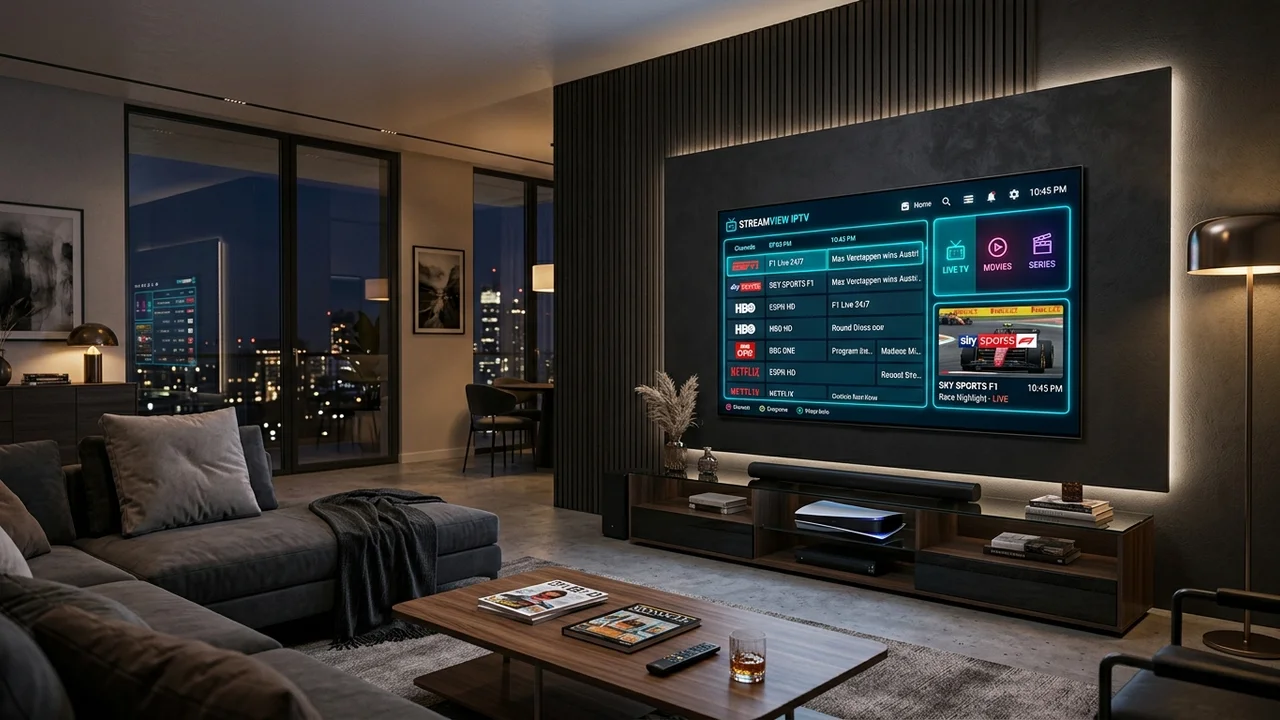
Upgrading your home entertainment system with modern protocol streaming requires choosing the right media software. A high-performance IPTV player for Smart TV is the critical bridge between your raw channel subscription and your television screen. Even with an ultra-fast gigabit broadband connection and an exceptional channel playlist, an outdated, poorly coded, or sluggish player application will lead to annoying interface lag, slow channel switching, audio sync mismatches, and sudden playback crashes.
Before choosing an application, it is essential to distinguish between the three foundational elements of your home television streaming ecosystem:
- IPTV Provider: The service (such as IPTVMap and our dedicated subscription plans) that provides authorized access to live television streams, video-on-demand (VOD) libraries, server credentials, and Electronic Program Guide (EPG) schedules.
- IPTV Player: The client-side software application installed on your Smart TV or external streaming device that organizes, decodes, and renders audio and video data onto your display.
- Smart TV Operating System: The underlying operating environment running on your physical television set—such as Samsung Tizen OS, LG webOS, Google TV, Android TV, or Hisense VIDAA—which dictates app compatibility and memory allocation.
Because no single media player functions identically across every television brand, finding the best IPTV app for Smart TV in 2026 requires understanding your specific television hardware capabilities, operating system restrictions, preferred playlist format, and desired interface features.
This comprehensive guide evaluates the top IPTV players for Smart TV in 2026, breaks down operating system compatibility across Samsung, LG, Sony, TCL, and Android TV hardware, analyzes essential playback features, contrasts free versus premium applications, and provides step-by-step setup walkthroughs.
What Is an IPTV Player and How Does It Work?
An IPTV player is a specialized media client designed to parse, organize, and stream digital live television and video-on-demand content delivered across Internet Protocol networks.
Unlike traditional consumer streaming apps such as Netflix, Disney+, or Prime Video—which come hard-coded with their own proprietary content libraries—an IPTV player is completely blank upon initial installation. The player possesses no built-in media content, channels, or movies. Instead, it functions as a modular media engine that interprets channel data feeds supplied by your IPTV provider.
To populate an IPTV player with live channels, catch-up streams, and on-demand movies, you must connect your authorized provider credentials through one of three standardized integration methods:
1. Xtream Codes API Integration
The Xtream Codes API is the industry-standard connection method for modern streaming applications. Rather than forcing you to copy and paste extensive playlist links, the Xtream Codes API requires only three basic credentials:
- Server URL / Hostname: The web address of the provider streaming server.
- Username: Your unique account username.
- Password: Your secure account password.
When you enter these credentials, the IPTV player queries the server database directly, organizing your channel lineup into intuitive category folders (Live Sports, News, Premium Movies, Documentaries, Kids) while fetching VOD movie metadata, series episode structures, and live Electronic Program Guide (EPG) schedules automatically.
2. M3U and M3U8 Playlist URLs
An M3U playlist is a text-based configuration file that contains a sequential list of direct media stream URLs accompanied by channel attributes such as display names, category tags, channel numbers, and logo URLs.
When you paste an M3U URL into an IPTV player, the application downloads the text file, parses each line of metadata, and builds an internal channel database. While M3U playlists are universally supported across virtually all media players, large playlists containing tens of thousands of streams can cause memory bottlenecks on low-powered Smart TV processors during initial load.
3. Portal URL and MAC Address Authentication
Portal authentication links your television's unique hardware identifier (MAC address) directly to your subscription on the provider server.
Used by legacy applications like Smart IPTV (SIPTV) and dedicated IPTV set-top boxes (such as MAG devices), portal setup requires registering your TV's MAC address on the player's web configuration portal alongside your provider playlist URL. Once saved, launching the app loads your streams instantly without requiring manual keyboard input on your TV remote.
What Makes an Exceptional IPTV Player for Smart TV?
Smart TVs possess significantly less random-access memory (RAM) and lower CPU processing power than dedicated streaming boxes like the Nvidia Shield TV Pro or Apple TV 4K. An application that runs smoothly on a high-end smartphone may stutter or freeze when handling 50,000 live streams on a budget 4K Smart TV.
When selecting an IPTV app for Smart TV, evaluate the software against these sixteen benchmark standards:
- Native App Store Availability: Official listing in the Samsung Tizen App Store, LG Content Store, or Google Play Store ensures stability, seamless background updates, and optimal system integration.
- Efficient Hardware Decoding: The ability to offload H.264, HEVC/H.265, and AV1 video decompression directly to the television's hardware graphics chip rather than relying on software emulation, preventing frame drops and thermal throttling.
- Electronic Program Guide (EPG) Integration: Support for XMLTV and GZIP guide formats, complete with customizable time-zone offsets and automatic background refreshes.
- Fast Channel Zapping: Low buffering overhead that allows switching between live channels in under two seconds.
- Robust Playlist Parsing: High-efficiency database management capable of ingesting massive playlists without crashing the TV's system memory.
- Customizable Favorites and Channel Sorting: Intuitive tools to create personalized favorite groups, reorder channels, and hide unused foreign language categories.
- Multi-Screen Playback: Split-screen multi-view capability allowing sports enthusiasts to monitor two, three, or four games simultaneously on supported hardware.
- Catch-Up TV and Time-Shift Support: Native compatibility with provider archive servers to replay live broadcasts from the preceding 24 to 72 hours.
- Audio and Subtitle Track Selection: Seamless toggling between primary commentary, stadium ambient audio, alternative languages, and closed captions (CEA-608/708 and external SRT).
- Audio-Video Synchronization Controls: Built-in audio delay adjustments to correct lip-sync discrepancies when outputting sound to external eARC soundbars or AV receivers.
- Parental Controls: PIN-code locking mechanisms for adult categories and administrative settings.
- VOD Library Management: Modern poster grids with IMDB ratings, plot summaries, trailer previews, cast information, and resume-playback tracking.
- Auto-Start on Boot: Option to launch the IPTV player automatically whenever the television is powered on, replicating a traditional set-top box experience.
- Remote Control Optimization: Native mapping to standard TV remote controls, including channel up/down, directional d-pad navigation, colored shortcut buttons, and numeric keypad input.
- Backup and Restore Utility: Cloud or local storage export tools to back up channel favorite groupings, custom playlist configurations, and app settings across multiple household screens.
- Data Privacy and Security: Transparent data handling that protects your playlist credentials without broadcasting telemetry data to third-party ad trackers.
Comprehensive IPTV Player Comparison for Smart TVs
The table below compares the leading IPTV player applications for Smart TV platforms based on verified feature sets, system resource efficiency, and setup complexity:
| IPTV Player App | Target Platforms | Supported Login Formats | EPG Support | Multi-Screen | Catch-Up TV | Pricing Model | Ease of Setup |
|---|---|---|---|---|---|---|---|
| IPTV Smarters Pro | LG webOS, Samsung Tizen, Android TV, Fire TV | Xtream Codes, M3U, Single Stream | Yes | Yes | Yes | Free / Premium Unlock | Very Easy |
| TiviMate IPTV | Android TV, Google TV, Fire TV | Xtream Codes, M3U, Stalker Portal | Yes | Yes | Yes | Freemium / Annual / Lifetime | Easy |
| Smart IPTV (SIPTV) | Samsung Tizen, LG webOS, Android TV | MAC Portal Web Upload, M3U | Yes | No | Limited | One-Time Lifetime (€5.49) | Moderate |
| XCIPTV Player | Android TV, Google TV, Fire TV | Xtream Codes, M3U URL | Yes | Yes | Yes | Free / In-App Ads | Very Easy |
| OTT Navigator | Android TV, Google TV, Fire TV | Xtream Codes, M3U, Stalker Portal | Yes | Yes | Yes | Free / Premium License | Advanced |
| IBO Player | Samsung Tizen, LG webOS, Android TV | MAC Address Web Portal, M3U, Xtream | Yes | No | Yes | One-Time Lifetime (€8.00) | Moderate |
| SS IPTV | LG webOS, Select Smart TV Stores | M3U, Dynamic Web Upload | Yes | No | No | 100% Free | Moderate |
| Nanomid Player | Samsung Tizen, LG webOS, Android TV | Web Portal, Xtream, M3U, VPN built-in | Yes | No | Yes | One-Time Lifetime (€9.99) | Easy |
In-Depth Reviews of the Best IPTV Players for Smart TV
1. IPTV Smarters Pro: The Universal Household Choice
IPTV Smarters Pro is the most recognizable and widely deployed IPTV client in the streaming industry. Available natively across the LG Content Store, Samsung Tizen Store, and Google Play Store, Smarters Pro offers an approachable, grid-based dashboard that categorizes media into four primary sections: Live TV, Movies, Series, and Catch-Up.
Core Strengths and Architectural Highlights
- Native Cross-Platform Availability: Smarters Pro is officially hosted on both Samsung and LG app stores, making installation as straightforward as downloading any standard app without complex sideloading.
- Xtream Codes Optimization: The app was engineered specifically around the Xtream Codes API, ensuring seamless synchronization with IPTVMap subscription servers.
- Multi-Screen Streaming: On supported Android TV and high-end Smart TVs, Smarters Pro allows watching up to four live channels at the same time in a clean 2x2 grid.
- Parental Controls & Subtitles: Built-in PIN code security protects selected categories, while the video player natively renders embedded DVB and CEA subtitles.
Limitations to Consider
- The user interface on older Tizen and webOS televisions can feel slightly heavy when processing playlists with more than 60,000 items.
- Certain advanced audio passthrough formats (such as DTS:X or Dolby Atmos bitstreaming) may require switching internal player engines in the application settings.
2. TiviMate IPTV Player: The Gold Standard for Android TV & Google TV
For televisions powered by Google TV or Android TV (such as Sony Bravia, TCL, Hisense, Philips, and Chromecast with Google TV), TiviMate is widely regarded as the finest IPTV player ever developed. Designed specifically for TV screens and remote controls, TiviMate recreates the premium experience of top-tier cable and satellite set-top boxes.
Core Strengths and Architectural Highlights
- Industry-Leading TV Guide (EPG): TiviMate features a fluid, responsive full-screen timeline electronic program guide that allows channel surfing, browsing upcoming schedule data, and scheduling reminders without interrupting ongoing live video playback.
- Flawless Multi-View Capability: Effortlessly stream 2, 3, 4, or even 9 live sports channels simultaneously, with seamless one-click audio switching between tiles.
- Auto-Frame Rate (AFR) Switching: Automatically matches your television's display refresh rate (50Hz, 59.94Hz, or 60Hz) to the stream's native frame rate, completely eliminating motion judder during live soccer, basketball, and football broadcasts.
- Extensive Customization: Personalize panel colors, guide text size, channel grouping hierarchies, buffer duration, and remote control button short-press and long-press actions.
Limitations to Consider
- TiviMate is developed exclusively for Android TV and Fire OS environments. It is not available in the Samsung Tizen or LG webOS app stores. Samsung and LG owners must attach an affordable external Android TV streaming stick (such as a Chromecast or Fire TV 4K) to use TiviMate.
3. Smart IPTV (SIPTV): Minimalist Lightweight Performance
Smart IPTV, commonly referred to as SIPTV, is one of the earliest third-party media players built specifically for Smart TV hardware. Unlike modern feature-heavy applications, SIPTV prioritizes ultra-low resource usage, making it an exceptional choice for older or entry-level Samsung and LG televisions with limited RAM.
Core Strengths and Architectural Highlights
- Zero System Bloat: The app footprint is minuscule, allowing rapid launch times and responsive channel navigation even on dual-core Smart TV processors.
- Remote Web Management: You never have to type long server URLs using your TV remote. You simply visit the official SIPTV activation portal on your computer or phone, input your TV's MAC address, paste your M3U playlist URL from your IPTVMap welcome email, and press send.
- Straightforward Channel Grid: Presents channels in a simple vertical list alongside a clear program information bar.
Limitations to Consider
- SIPTV requires a modest one-time activation fee of €5.49 after a 7-day initial evaluation period.
- The application is primarily optimized for live television; its on-demand movie and TV series interface lacks the modern poster art and episode sorting found in apps like Smarters Pro or TiviMate.
4. XCIPTV Player: Feature-Rich Android TV Streaming
XCIPTV is a visually striking, customizable IPTV player built for Android TV and Google TV platforms. It offers an alternative modern aesthetic featuring interactive dashboard tiles, customizable launcher skins, and dual built-in media engines (ExoPlayer and VLC Player).
Core Strengths and Architectural Highlights
- Dual Media Engine Architecture: If an audio codec or video container stutters in the default ExoPlayer engine, you can toggle that specific channel category to render via VLC Player with a single click in settings.
- Integrated Speed Testing: Features an in-app network throughput test that benchmarks your television's connection directly to streaming content delivery networks.
- Rich VOD & Catch-Up Interface: Displays high-resolution movie posters, trailer playback, cast listings, and detailed episode synopses.
Limitations to Consider
- Like TiviMate, XCIPTV is restricted to Android TV / Google TV operating systems and is unavailable on proprietary Samsung Tizen and LG webOS platforms.
5. OTT Navigator: Unmatched Technical Customization
For power users who demand granular control over every aspect of stream decoding, buffer sizes, and network packet handling, OTT Navigator represents the pinnacle of technical configuration.
Core Strengths and Architectural Highlights
- Adaptive Video Processing: Allows manual selection between software, hardware, and hybrid decoders, making it possible to resolve complex audio-video synchronization errors and interlacing artifacts.
- Dynamic Stream Buffering: Configure custom buffer sizes in milliseconds, allowing the player to store up to 30 seconds of video data in memory to absorb temporary Wi-Fi throughput fluctuations.
- Channel Aggregation: Seamlessly combines multiple playlist sources into unified channel directories, automatically deduplicating channels and selecting the highest-resolution active stream.
Limitations to Consider
- The sheer depth of configuration menus and technical parameters can feel overwhelming for mainstream viewers seeking a simple plug-and-play television experience.
6. IBO Player: Fast, Modern & Available Everywhere
IBO Player has rapidly emerged as a favorite alternative for Samsung Tizen and LG webOS owners. It combines the clean web-portal playlist management of Smart IPTV with the modern graphical aesthetics and VOD categorization of Smarters Pro.
Core Strengths and Architectural Highlights
- True Multi-Platform Availability: Officially downloadable from Samsung, LG, Android TV, and Apple TV app stores.
- Intuitive Remote Pairing: Displays a QR code upon startup. Scanning the QR code with your smartphone opens the web configuration dashboard, allowing you to load your Xtream Codes or M3U credentials in seconds.
- Fast Channel Switching: Highly optimized memory management delivers channel switching times under two seconds on modern Smart TVs.
Limitations to Consider
- Requires a one-time lifetime license fee of approximately €8.00 per device after an initial 7-day trial.
7. SS IPTV: 100% Free Smart TV Playback
SS IPTV (Simple Smart IPTV) is a venerable, completely free media application designed specifically for Smart TVs. Officially supported on many LG webOS models and compatible with Samsung sets, it serves viewers looking for an entirely free streaming solution without recurring fees or in-app purchases.
Core Strengths and Architectural Highlights
- Completely Free: No subscription fees, activation charges, or premium feature paywalls.
- Web Playlist Syncing: Generates a temporary connection code on your TV screen that you enter on the SS IPTV website to upload your M3U playlist remotely.
- Lightweight Footprint: Operates reliably on early-generation webOS smart televisions.
Limitations to Consider
- The user interface looks dated compared to modern alternatives like IBO Player or TiviMate.
- Electronic Program Guide (EPG) mapping occasionally requires manual channel ID alignment.
Operating System Guide: Finding the Right Player for Your TV Brand
To ensure a smooth streaming experience, select an application that runs natively on your television's specific operating system:
Samsung Smart TVs (Tizen OS)
Samsung televisions utilize their proprietary Linux-based Tizen operating system. Tizen does not support Android APK files or Google Play Store downloads.
- Top Recommended Players: IBO Player, IPTV Smarters Pro, Smart IPTV (SIPTV), Nanomid Player.
- Installation Method: Open the Samsung Smart Hub → Search for the application by name → Select "Install" → Launch and pair via web portal or Xtream Codes.
- Pro Tip: If your Samsung TV was manufactured prior to 2018, opt for Smart IPTV or IBO Player due to their superior memory efficiency on older processors.
LG Smart TVs (webOS)
LG televisions operate on webOS, an elegant operating system with strict memory sandboxing policies.
- Top Recommended Players: IPTV Smarters Pro, IBO Player, Smart IPTV (SIPTV), SS IPTV.
- Installation Method: Press the Home button on your Magic Remote → Launch the LG Content Store / Apps → Search for the player → Install and launch.
- Pro Tip: Use the numeric keypad and color shortcut buttons on your LG Magic Remote to navigate channel groups and toggle favorite categories quickly.
Sony, TCL, Hisense & Philips Smart TVs (Google TV / Android TV)
Televisions running Google TV or Android TV offer the greatest flexibility, granting full access to the vast Google Play Store.
- Top Recommended Players: TiviMate IPTV, OTT Navigator, IPTV Smarters Pro, XCIPTV.
- Installation Method: Open Google Play Store on your TV → Search for "TiviMate" or "IPTV Smarters" → Click Install.
- Pro Tip: For sports enthusiasts, enable Auto-Frame Rate (AFR) inside TiviMate to enjoy silky-smooth 60fps broadcasts without motion judder.
Step-by-Step Installation & Configuration Walkthrough
Setting up your chosen IPTV player takes less than five minutes when following this standardized procedure. In this walkthrough, we will demonstrate configuration using IPTV Smarters Pro with Xtream Codes API, the most reliable method for IPTVMap subscribers.
Phase 1: Installing the Application
- Turn on your Smart TV and ensure it is connected to your home network (preferably via a wired Ethernet cable or 5GHz Wi-Fi band).
- Open your TV's official application repository:
- Samsung: Apps
- LG: LG Content Store / Apps
- Sony / Android TV: Google Play Store
- In the search bar, enter IPTV Smarters Pro (or your selected alternative player).
- Select the official application from the search results and click Install or Download.
- Once the installation completes, click Open to launch the software.
Phase 2: Inputting Your Provider Credentials
- When launched for the first time, accept the terms of service.
- The application will prompt you to choose your playlist format. Select Login with Xtream Codes API.
- You will be presented with four input fields:
- Any Name: Enter a recognizable label (e.g.,
IPTVMap 4K). - Username: Enter the exact username provided in your IPTVMap order confirmation.
- Password: Enter your secure password.
- Server URL / Hostname: Enter the server URL provided in your activation details (e.g.,
http://server.iptvmap.online:8080).
- Any Name: Enter a recognizable label (e.g.,
- Double-check all characters for accuracy, ensuring there are no accidental spaces before or after your credentials.
- Select Add User or Login.
Phase 3: Synchronizing Content and EPG Schedules
- Once logged in, the player will communicate with the streaming servers and begin downloading channel category directories.
- Select Download Live TV, Download Movies, and Download Series.
- Navigate to Settings → EPG → Refresh EPG to ensure your program schedules are fully populated.
- Navigate into the Live TV menu, select your preferred category (such as US Sports, UK Entertainment, or 4K Cinema), and select a channel to initiate playback.
For platform-specific troubleshooting during initial setup, consult our comprehensive Smart TV IPTV setup guide and device installation directory.
Optimizing Smart TV Settings for Flawless Playback
Even the best IPTV player can suffer from buffering or stuttering if your television's display settings and network parameters are misconfigured. Implement these five optimizations to unlock peak streaming performance:
1. Hardwire via Ethernet or Connect to 5GHz Wi-Fi
Streaming uncompressed 4K video feeds and 60fps live sports requires consistent network throughput. Traditional 2.4GHz Wi-Fi networks are prone to radio interference from household appliances and neighboring routers. Connect your Smart TV directly to your home router using an Ethernet patch cable, or ensure your TV connects to the 5GHz frequency band of your Wi-Fi router. To verify your bandwidth meets streaming criteria, review our guide on internet speed for IPTV.
2. Configure Hardware Decoding
Inside your IPTV player's settings menu, locate the Decoder or Player Engine section:
- Set the video decoder to Hardware (HW) or Hardware+.
- Hardware decoding delegates video decompression to the television's dedicated GPU, keeping CPU temperatures cool and preventing frame drops during high-bitrate live sports.
- If you encounter a black screen with audio on certain streams, switch the decoder to Software (SW) for that specific format.
3. Adjust Buffer Size Duration
Most premium IPTV players allow you to configure the internal stream buffer:
- Normal / Stable Connection: Set buffer size to Small (1 to 2 seconds) for rapid channel switching.
- Fluctuating / High-Latency Connection: Set buffer size to Medium or Large (5 to 10 seconds). This allows the player to pre-cache video packets, insulating your stream against temporary micro-drops in Wi-Fi signal. If you suffer from frequent stream freezes, read our diagnostic checklist on how to fix IPTV freezing.
4. Correct Audio Output & Lip-Sync Settings
When routing TV audio through an external soundbar or home theater receiver over HDMI ARC/eARC, audio processing delays can cause lip-sync lag. If dialog does not match actor lips:
- Navigate to your TV's sound settings and set digital audio output to Pass-through or Bitstream.
- If minor desynchronization persists, use your IPTV player's internal Audio Delay / Offset slider to nudge audio forward or backward in 50ms increments. For complete troubleshooting, refer to our guide on fixing IPTV audio and video out of sync.
5. Clear Application Cache Regularly
Smart TVs possess limited internal flash memory. Over weeks of browsing channels and downloading EPG program data, the player cache can accumulate hundreds of megabytes of temporary files, causing the TV to feel sluggish:
- On Android TV / Google TV: Go to Settings → Apps → Select your IPTV app → Click Clear Cache.
- On Samsung / LG: Power cycle your TV by unplugging it from the wall outlet for 60 seconds to purge volatile RAM.
Common Smart TV IPTV Player Errors and How to Solve Them
Error 1: "Cannot Connect to Server" or "Authorization Failed"
- Cause: Typing error in server URL, expired credentials, or your ISP blocking default streaming ports.
- Fix: Re-enter credentials carefully. Verify that there is no trailing slash (
/) at the end of the Server URL. If authorization fails consistently, restart your home router to refresh your public IP address.
Error 2: "Video Format Not Supported" or Audio Plays with Black Screen
- Cause: The stream uses an advanced video container (such as HEVC Main 10 or AV1) that your Smart TV's default player engine cannot decode.
- Fix: Open player settings and switch the video player engine from default (ExoPlayer) to an alternative engine (such as VLC or IJK Player).
Error 3: Channel Switching Takes 5 to 10 Seconds
- Cause: Buffer duration is set excessively high, or the player is fetching heavy EPG data synchronously on every channel change.
- Fix: Reduce the stream buffer size to 1 second and disable animated channel transition effects. For detailed performance tuning, see our guide on how to fix slow IPTV channel switching.
Error 4: App Crashes to TV Home Screen Unexpectedly
- Cause: The Smart TV has run out of available RAM while parsing an excessively large playlist.
- Fix: In your provider portal or app settings, hide channel categories you never watch (e.g., foreign language groups, duplicate SD feeds). Trimming the active channel list reduces memory consumption by over 60%.
Stream 2026 NFL Games in 4K & 60FPS
Get instant access to over 50,000 live sports channels, 120,000+ movies & series, and 24/7 priority sports coverage across all your favorite devices.