What Internet Speed Do You Need for IPTV in 2026? Bandwidth, Latency & Stability Guide
Nothing ruins a thrilling sports championship or the climax of a blockbuster movie quite like an unexpected buffering wheel. When viewers experience stuttering, freezing, or pixelation on their television, their first instinct is often to assume their internet service provider (ISP) package is too slow. However, live protocol streaming operates differently from standard web browsing or traditional video-on-demand platforms like YouTube and Netflix.
While web browsing and file downloading tolerate minor pauses, streaming live television over Internet Protocol requires a continuous, uninterrupted delivery of digital data packets. A household with a nominally fast 200 Mbps broadband connection can experience continuous buffering if their network suffers from high latency, packet loss, or Wi-Fi interference. Conversely, a stable, low-latency 35 Mbps fiber connection can stream pristine 4K live sports without a single hitch.
Understanding what internet speed you need for IPTV in 2026 requires looking beyond advertised headline megabits per second. You must evaluate video resolution bitrates, modern compression codecs (HEVC and AV1), connection stability metrics (ping, jitter, and packet loss), household network congestion, and local Wi-Fi architecture.
In this comprehensive guide, we analyze exact bandwidth benchmarks for SD, HD, FHD, and 4K streams, explain how network quality metrics dictate playback stability, compare Ethernet against modern Wi-Fi frequencies, explore ISP throttling mechanisms, and provide actionable router optimization techniques to guarantee buffer-free entertainment on IPTVMap and our subscription packages.
Bandwidth vs. Stability: The Core Principles of IPTV Streaming
When evaluating your home internet connection for live streaming, it is critical to understand the distinction between two fundamental network properties: Bandwidth and Stability.
Bandwidth (Speed / Throughput)
Bandwidth represents the maximum volume of digital data your internet connection can transfer per second, measured in Megabits per second (Mbps). Think of bandwidth as the width of a highway: a wider highway allows more vehicles (data packets) to travel side-by-side simultaneously. For live streaming, your connection must provide sufficient width to accommodate the continuous video bitrate of your chosen channel.
Stability (Latency, Jitter, and Packet Loss)
Stability represents the consistency and reliability with which those data packets arrive at your television. In live television broadcasting, video frames are transmitted in real time. Unlike Netflix, which can download and buffer 10 minutes of video ahead of your current playback position, live television streams can only buffer a few seconds of future content. If data packets arrive late, out of order, or vanish entirely, the media player's buffer starves instantly, freezing your picture.
To ensure flawless streaming, three stability metrics must be monitored:
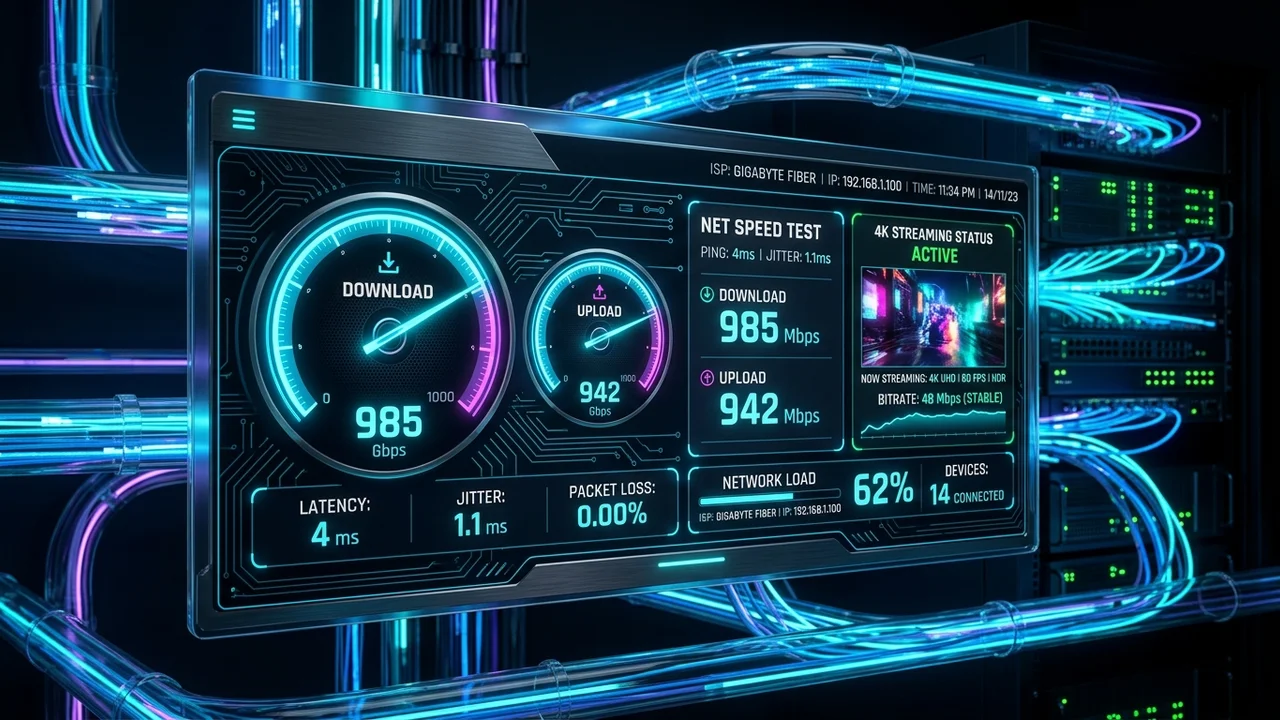
- Latency (Ping): The round-trip time required for a data packet to travel from your streaming device to the provider server and return, measured in milliseconds (ms). Ideal ping for live streaming is under 50 ms.
- Jitter: The variation or fluctuation in latency over time. If your ping jumps erratically from 20 ms to 180 ms and back, data packets arrive in uneven clumps, forcing the media player to pause and realign the stream. Ideal jitter is under 5 ms.
- Packet Loss: The percentage of transmitted data packets that fail to reach their destination. In live streaming, even a 1% packet loss rate can trigger visible pixelation, macroblocking, audio dropouts, or complete stream disconnection.
IPTV Internet Speed Requirements by Resolution and Frame Rate
Streaming bitrates vary widely depending on the resolution of the broadcast, the frame rate (30fps vs. 60fps), and the compression codec employed by the broadcast server.
The table below details the minimum required connection speed, the recommended overhead buffer speed, and the typical data consumption for each video tier in 2026:
| Video Resolution & Format | Native Stream Bitrate | Minimum Dedicated Speed | Recommended Connection Speed | Hourly Data Consumption |
|---|---|---|---|---|
| Standard Definition (SD / 480p) | 1.5 – 3 Mbps | 5 Mbps | 10 Mbps | ~0.7 – 1.4 GB / hr |
| High Definition (HD / 720p at 30fps) | 3.5 – 6 Mbps | 10 Mbps | 15 Mbps | ~1.6 – 2.7 GB / hr |
| Full HD (FHD / 1080p at 30fps) | 6 – 10 Mbps | 15 Mbps | 25 Mbps | ~2.7 – 4.5 GB / hr |
| Full HD Sports (FHD / 1080p at 60fps) | 10 – 16 Mbps | 25 Mbps | 35 Mbps | ~4.5 – 7.2 GB / hr |
| 4K Ultra HD (UHD / 2160p at 60fps) | 20 – 35 Mbps | 50 Mbps | 75 Mbps | ~9.0 – 15.8 GB / hr |
| 4K UHD Uncompressed HDR / High-Bitrate | 35 – 50 Mbps | 80 Mbps | 100+ Mbps | ~15.8 – 22.5 GB / hr |
Why Dedicated Speed Differs from Total Connection Speed
You will notice in the table above that the Recommended Connection Speed is significantly higher than the raw stream bitrate. This overhead is vital for three reasons:
- Burst Buffering: When you first select a channel or clear a buffer underrun, the media player attempts to download 5 to 10 seconds of video as quickly as possible. Having spare bandwidth enables instant channel zapping without initial stutter.
- Network Protocol Overhead: Encryption, TCP/UDP packet headers, and network handshakes consume approximately 10% to 15% of your available throughput.
- Concurrent Household Usage: Other connected devices in your home (smartphones, gaming consoles, laptops, security cameras) continuously consume background bandwidth for software updates, cloud backups, and social media feeds.
The Impact of Modern Video Codecs: H.264 vs. HEVC (H.265) vs. AV1
The internet speed required to stream a pristine 4K channel depends heavily on the video compression standard used by the broadcast server.
1. Advanced Video Coding (H.264 / AVC)
H.264 is the legacy video compression standard that powered digital video for the past two decades. While H.264 is universally supported across virtually every television, set-top box, and mobile device manufactured since 2010, its compression efficiency is relatively low.
- Delivering a high-quality 1080p 60fps sports stream via H.264 requires 12 to 16 Mbps of bandwidth.
- Attempting to broadcast 4K Ultra HD via H.264 is inefficient, requiring upwards of 40 Mbps, which places excessive load on both consumer internet connections and streaming delivery servers.
2. High Efficiency Video Coding (H.265 / HEVC)
HEVC is the contemporary standard for modern high-definition and 4K streaming. HEVC delivers approximately 50% greater data compression than H.264 at identical visual quality levels.
- A 1080p 60fps broadcast encoded in HEVC requires only 6 to 8 Mbps.
- A breathtaking 4K UHD HDR broadcast encoded in HEVC streams smoothly at 18 to 28 Mbps.
- Virtually all 4K Smart TVs manufactured by Samsung, LG, Sony, and TCL since 2017 feature dedicated silicon chips for HEVC hardware decoding, ensuring zero strain on your TV processor.
3. AOMedia Video 1 (AV1)
AV1 is the next-generation, royalty-free open video codec backed by tech leaders including Google, Apple, and Netflix. AV1 provides approximately 20% to 30% greater compression efficiency than HEVC, making it possible to deliver 4K streams at bitrates under 18 Mbps.
- While AV1 represents the future of protocol broadcasting, hardware decoding support is currently limited to high-end smart televisions and media boxes released after 2022.
On IPTVMap channels, we utilize advanced HEVC/H.265 encoding across our premium sports and 4K cinema tiers to ensure you enjoy pristine broadcast fidelity while consuming substantially less bandwidth than legacy providers.
Calculating Your Household Bandwidth Requirements
To determine the ideal broadband plan for your home, you must account for all simultaneous internet activities taking place across your local network. A speed that works perfectly for a single viewer living alone will quickly crumble in a busy family home.
Use this simple step-by-step formula to calculate your household's total bandwidth requirement:
Step 1: Calculate Streaming TV Demands
Multiply the number of screens that will stream television simultaneously by the recommended bandwidth for each screen's target resolution:
- Screen 1 (Living Room 4K Smart TV): 50 Mbps
- Screen 2 (Bedroom 1080p TV / Firestick): 25 Mbps
- Screen 3 (Tablet or Smartphone in HD): 15 Mbps
- Subtotal for Streaming: 90 Mbps
Step 2: Add Secondary Household Online Activities
Estimate the bandwidth consumed by other family members and connected smart devices during peak evening viewing hours (7:00 PM to 11:00 PM):
- Online Multiplayer Gaming (PlayStation 5 / Xbox Series X / PC): 15 Mbps (requires ultra-low ping)
- Video Conferencing / Work from Home (Zoom, Teams, Google Meet): 10 Mbps
- General Social Media Browsing, 4K YouTube & Web Surfing: 25 Mbps
- Smart Home Devices & Security Cameras (Ring, Nest, smart plugs): 10 Mbps
- Subtotal for Household Activities: 60 Mbps
Step 3: Add a 25% Safety Headroom Margin
Household internet throughput fluctuates throughout the day due to neighborhood node congestion, Wi-Fi packet retries, and background OS updates. Always add a 25% safety buffer to your combined total:
- Combined Requirement: 90 Mbps + 60 Mbps = 150 Mbps
- 25% Safety Buffer: 150 Mbps × 1.25 = 187.5 Mbps
Conclusion: For a modern household with three simultaneous active screens and standard smart home connectivity, an internet subscription plan offering 200 Mbps to 300 Mbps download speed provides the ideal, buffer-free sweet spot.
Wi-Fi vs. Ethernet: Why Connection Type Matters More Than Raw Speed
One of the most frequent misconceptions among streaming subscribers is relying on wireless internet speed tests performed on a modern smartphone to gauge Smart TV performance. A subscriber may stand next to their router, record 400 Mbps on their iPhone 15, and wonder why their television in the next room stutters during live football broadcasts.
The physical medium connecting your television to your home router is often the true bottleneck.
The Pitfalls of 2.4 GHz Wi-Fi
The traditional 2.4 GHz wireless frequency band has a long broadcast range, but its spectrum is crowded and highly vulnerable to physical and radio interference:
- Co-Channel Interference: Microwave ovens, Bluetooth soundbars, baby monitors, and neighboring Wi-Fi networks all transmit across 2.4 GHz, causing packet collision and high jitter.
- Limited Throughput: Real-world throughput rarely exceeds 30 to 45 Mbps on 2.4 GHz in suburban environments.
- Avoid 2.4 GHz for Live Sports: The erratic packet delivery of 2.4 GHz Wi-Fi makes it entirely unsuitable for high-bitrate 60fps sports streaming.
The Benefits and Caveats of 5 GHz Wi-Fi
The 5 GHz wireless frequency band provides substantially higher bandwidth (easily exceeding 250 Mbps) and features dozens of non-overlapping channels, eliminating neighborhood interference:
- High Throughput & Lower Jitter: Delivers clean packet streams capable of sustaining 4K HDR playback.
- Limited Wall Penetration: 5 GHz radio waves attenuate rapidly when passing through solid brick walls, concrete floors, or metal entertainment center backing. If your Smart TV is separated from your router by multiple rooms, the 5 GHz signal may drop below acceptable stability thresholds.
The Undefeated Champion: Wired Ethernet (Cat5e / Cat6)
Whenever physically possible, connect your Smart TV or streaming media box to your router using a physical Ethernet cable:
- Zero Radio Interference: Physical copper cables are completely immune to household electromagnetic interference.
- Rock-Solid Latency: Eliminates Wi-Fi packet jitter, ensuring your ping remains locked at single-digit milliseconds.
- Guaranteed Throughput: Delivers 100% of available router throughput without signal degradation.
Crucial Hardware Note on Smart TV Ethernet Ports: Most Smart TV manufacturers (including Samsung, LG, and Sony) install 100 Mbps (Fast Ethernet) ports rather than 1 Gbps (Gigabit Ethernet) ports on their televisions to cut manufacturing costs. Do not be alarmed if an Ethernet speed test on your Smart TV caps at 95 Mbps. Because even uncompressed 4K streaming peaks around 40 Mbps, a stable 95 Mbps wired connection is vastly superior to a fluctuating 300 Mbps Wi-Fi connection.
For a deeper dive into multi-device network isolation and connectivity fixes, review our guide on why IPTV works on one device but not another.
ISP Throttling: How to Detect and Prevent Artificial Speed Limits
You may have purchased an expensive 500 Mbps fiber package, yet find that your IPTV stream buffers relentlessly every evening between 8:00 PM and 10:30 PM, specifically during major sports events. When you run a standard Ookla speed test, your results look flawless at 480 Mbps. What is happening?
The culprit is almost certainly ISP Throttling (traffic shaping).
How and Why Internet Providers Throttle Streaming
During peak hours, thousands of households in your metropolitan area stream high-bandwidth video simultaneously. To protect their network infrastructure and avoid buying expensive bandwidth transit, many internet service providers deploy Deep Packet Inspection (DPI) technology.
DPI algorithms inspect the header data and destination IP addresses of your network packets. When the ISP detects sustained, high-volume video data streaming from known media protocol ports (such as ports 80, 8080, 8443, or 25461), the provider's automated traffic management systems deliberately throttle bandwidth on that specific connection to 4 Mbps or 5 Mbps—just enough to trigger continuous buffering.
How to Prove Your ISP Is Throttling Your Stream
To confirm whether your buffering is caused by ISP traffic shaping or a genuine server issue, execute this simple comparison test:
- Test Playback on Your Normal Home Network: Open your IPTV player on your television and tune to a high-demand live sports channel. Note if buffering, freezing, or stuttering occurs.
- Perform a Mobile Hotspot Test: Disconnect your television from your home Wi-Fi and connect it to your mobile smartphone's 4G or 5G personal hotspot.
- Compare the Stream: If the exact same channel plays smoothly on your mobile hotspot while stuttering on your 500 Mbps home broadband, your home ISP is actively shaping or throttling your IPTV traffic.
How to Bypass ISP Throttling
- Deploy a Premium VPN on Your Router or Device: A Virtual Private Network encrypts 100% of your incoming and outgoing data packets using military-grade AES-256 encryption. Because your ISP cannot inspect the contents or destination of encrypted packets, automated throttling algorithms cannot engage.
- Change Streaming Port Configuration: In your IPTV player settings, switch from HTTP stream protocols to secure HTTPS/SSL endpoints provided by IPTVMap.
If stream interruptions persist even after checking your connection, consult our comprehensive diagnostic manual on how to fix IPTV freezing and our investigation into why IPTV buffers after a few minutes.
How to Accurately Test Your Internet Connection for Streaming
Relying on standard browser speed test websites can be misleading. Traditional speed tests automatically connect to the physically nearest ISP server located in your immediate city, which does not reflect the real-world route your streaming packets must travel across international content delivery networks.
Follow this testing protocol to benchmark your network for live television streaming:
1. Benchmark Throughput to International Servers
When testing your speed on platforms like Speedtest.net or Fast.com:
- Do not accept the default local host server.
- Manually select a test server located in a major international media hub (e.g., London, Frankfurt, New York, or Amsterdam).
- This forces your data packets through transatlantic and regional internet exchanges, providing a realistic assessment of international transit speeds.
2. Measure Jitter and Packet Loss with Cloudflare
Visit speed.cloudflare.com on your computer or Smart TV web browser:
- Cloudflare's diagnostic suite evaluates packet consistency across 100KB, 1MB, 10MB, and 25MB file transfers.
- Examine the Jitter metric: It should remain below 8 ms.
- Examine the Packet Loss metric: It must read 0.0%. Any recorded packet loss indicates a deteriorating Wi-Fi signal, a faulty Ethernet cable, or localized ISP routing failures.
3. Run In-App Speed Tests on Your Streaming Device
If you use modern IPTV players such as XCIPTV or OTT Navigator, use the player's integrated network speed test tool. This benchmarks bandwidth directly from your streaming hardware to the active media server, bypassing browser overhead completely.
7 Proven Router and Network Tweaks to Eliminate Buffering
Configuring your home router takes less than fifteen minutes and can dramatically improve streaming stability across every television in your house:
1. Assign Static IP Addresses to Your Streaming Devices
By default, routers assign dynamic IP addresses via DHCP, which can change periodically. Assigning a static, reserved local IP address (e.g., 192.168.1.150) to your Smart TV or streaming box prevents DHCP lease renewal drops during live broadcasts.
2. Switch to Ultra-Fast Public DNS Servers
Most household routers default to their ISP's slow, poorly maintained domain name system (DNS) servers, which can delay stream resolution. Change your router's primary and secondary DNS settings to:
- Cloudflare DNS: Primary:
1.1.1.1| Secondary:1.0.0.1 - Google Public DNS: Primary:
8.8.8.8| Secondary:8.8.4.4 - Cloudflare and Google DNS resolve streaming hostnames significantly faster, speeding up initial channel zapping and preventing DNS-based ISP filtering.
3. Enable Quality of Service (QoS) Rules
If your router features Quality of Service (QoS) management, enable it immediately:
- Set your Smart TV, Nvidia Shield, or Firestick as the Highest Priority Device.
- QoS ensures that if someone else in your home begins downloading a massive game update or uploading video files, your router will automatically prioritize streaming television packets first, preventing your stream from dropping frames.
4. Separate 2.4 GHz and 5 GHz Network SSIDs
Many modern mesh routers combine 2.4 GHz and 5 GHz frequencies into a single unified Wi-Fi name (Smart Connect). In practice, Smart TVs often connect to the slower 2.4 GHz band by mistake:
- Access your router admin dashboard and split your wireless bands into distinct names (e.g.,
HomeNetwork_2.4GandHomeNetwork_5G). - Connect your streaming devices exclusively to the 5 GHz network.
5. Select Clear Wi-Fi Channels
Use a free smartphone Wi-Fi analyzer app to scan your living room:
- Identify which wireless channels your neighbors are broadcasting on.
- Manually assign your router's 5 GHz band to an uncongested channel (such as Channels 36, 44, or 149) to eliminate co-channel packet collisions.
6. Disable SIP ALG on Your Router
SIP ALG (Session Initiation Protocol Application Layer Gateway) is a legacy networking feature enabled by default on many consumer routers. It frequently inspects and corrupts media stream packets, causing sudden stream drops. Disabling SIP ALG in your router's firewall or advanced WAN settings enhances streaming stability.
7. Power Cycle Your Network Hardware Monthly
Routers and modems are specialized mini-computers with dedicated processors and RAM. Over weeks of sustained operation, routing tables fragment and memory leaks accumulate. Power cycling your modem and router for 60 seconds once every 30 days flushes volatile memory and renegotiates clean signal channels with your ISP.
Alternative Internet Connections: 5G Home Internet, 4G LTE, and Starlink Satellite
Not every household has access to terrestrial fiber-optic or DOCSIS 3.1 cable broadband. Millions of viewers rely on alternative wireless internet connections to stream live television. Understanding the unique operational characteristics of these wireless connections prevents unexpected streaming headaches:
1. 5G Home Internet (Fixed Wireless Access - FWA)
Fixed wireless services (such as T-Mobile 5G Home Internet and Verizon 5G Home) utilize cellular tower base stations to deliver high-speed internet to household wireless gateways.
- Throughput: Typically ranges between 100 Mbps and 450 Mbps, which is more than adequate for multiple simultaneous 4K streams.
- The Latency and Jitter Challenge: Unlike fiber, 5G signals travel through open air, making them vulnerable to heavy rainfall, foliage obstruction, and cell tower user congestion during evening rush hours. Jitter can fluctuate from 25 ms to over 120 ms.
- Carrier-Grade NAT (CGNAT): Most 5G home internet providers utilize CGNAT to conserve IPv4 addresses. CGNAT shares a single public IP address across hundreds of cellular subscribers. In rare instances, if another user on your shared cellular IP violates streaming access rules, your IP may experience temporary server blocks. Using a VPN or requesting an IPv6 configuration resolves CGNAT conflicts.
- Optimization Tip: Place your 5G gateway next to a window facing the nearest cellular tower, and run an Ethernet cable from the gateway directly into your Smart TV.
2. Mobile 4G LTE Hotspot Streaming
Streaming live television over a smartphone 4G LTE hotspot is a popular solution for mobile travelers, RV owners, and vacation homes.
- Bandwidth Expectations: Typical 4G LTE speeds range from 15 Mbps to 40 Mbps. This is sufficient for stable 720p HD and compressed 1080p streaming.
- Data Consumption Caution: As highlighted in our bandwidth table, high-definition sports streaming consumes approximately 4.5 GB to 7.0 GB of data per hour. A standard mobile plan with a 50 GB monthly hotspot allowance will be completely exhausted after roughly 8 to 10 live football or basketball games.
- Adaptive Bitrate Tuning: Inside your IPTV player, manually force the stream resolution to 720p or 1080p Standard rather than 4K to conserve mobile data while preventing cellular buffering.
3. Starlink Satellite Internet (Low Earth Orbit)
SpaceX's Starlink has revolutionized rural internet connectivity by deploying thousands of Low Earth Orbit (LEO) satellites operating at altitudes under 550 kilometers.
- Performance Profile: Starlink typically delivers 80 Mbps to 220 Mbps download speeds with latency ranging between 30 ms and 55 ms, making it vastly superior to legacy geostationary satellite services (such as HughesNet or Viasat, which suffer from unusable 600 ms pings).
- Micro-Obstructions and Satellite Handoffs: As Starlink dish antennas track satellites across the sky, handoffs between orbiting satellites occur every few minutes. If a tree branch or roof overhang obstructs even 1% of the dish's northern sky view, a brief 2-second packet drop will occur during satellite transitions. While web pages will reload seamlessly, a live television stream may freeze.
- Optimization Tip: Ensure your Starlink dish has a certified 0.0% obstruction rating in the Starlink mobile application, and increase your IPTV player's buffer size to 5 to 8 seconds to bridge transient satellite handoff pauses smoothly.
Bufferbloat: The Hidden Killer of Live Streams
You may have blazing gigabit download speeds, yet experience catastrophic streaming freezes whenever a family member uploads an Instagram video, sends an email with large attachments, or initiates a cloud backup. The technical cause behind this baffling issue is Bufferbloat.
What Is Bufferbloat?
Bufferbloat occurs when high-volume data transfers fill up the unmanaged hardware buffers inside your router and cable modem. When these internal hardware memory buffers become congested with large outgoing packets, time-sensitive video packets get stuck waiting in line behind bulk file data. As a result, network latency spikes from a normal 20 ms to over 800 ms within fractions of a second, causing instant video stutter and lip-sync desync.
How to Test for Bufferbloat
Visit the Waveform Bufferbloat Test (waveform.com/tools/bufferbloat) on any computer or mobile browser connected to your home network:
- The tool benchmarks your network latency under idle conditions, then measures latency spikes while aggressively saturating your download and upload pipelines.
- If your test returns a score of Grade C, D, or F, your router suffers from severe bufferbloat that will actively disrupt live television streaming whenever your connection experiences heavy traffic.
How to Eliminate Bufferbloat with Smart Queue Management (SQM)
The definitive solution to bufferbloat is deploying Smart Queue Management (SQM) algorithms inside your router:
- Access Advanced Router Settings: Modern gaming routers and premium third-party firmware (such as OpenWrt, ASUS-Merlin, and pfSense) include dedicated SQM features.
- Enable Cake or FQ-CoDel Algorithms: Enable the CAKE (Common Applications Kept Enhanced) or FQ-CoDel (Fair Queueing Controlled Delay) queue discipline on your router's WAN interface.
- Set Ingress and Egress Bandwidth Limits: Set your SQM download and upload limits to approximately 90% to 95% of your maximum tested speeds. By capping your speed just below the saturation threshold of your modem, the router's intelligent algorithms prioritize small, time-critical IPTV and gaming packets ahead of large bulk data transfers. Bufferbloat latency spikes are reduced to virtually zero, ensuring unshakeable stream stability.
Streaming Hardware Comparison: Network Chipsets and Throughput Limits
Even the fastest fiber connection cannot compensate for a streaming media stick equipped with a weak Wi-Fi chip or an underpowered processor. The table below illustrates the networking capabilities of leading streaming devices:
| Streaming Device | Network Interface | Max Practical Wi-Fi Speed | Ethernet Port Speed | Recommended Video Tier |
|---|---|---|---|---|
| Amazon Fire TV Stick 4K Max (Gen 2) | Wi-Fi 6E (Tri-Band) | 450+ Mbps | 100 Mbps (via OTG Adapter) | 4K HDR & 60fps Sports |
| Apple TV 4K (3rd Gen Ethernet) | Wi-Fi 6 (MIMO) + Gigabit LAN | 650+ Mbps | 1,000 Mbps (Gigabit) | 4K Dolby Vision & Multi-Stream |
| Nvidia Shield TV Pro | Wi-Fi 5 (802.11ac) + Gigabit LAN | 300+ Mbps | 1,000 Mbps (Gigabit) | 4K AI Upscaling & Multi-View |
| Chromecast with Google TV (4K) | Wi-Fi 5 (802.11ac) | 220+ Mbps | 100 Mbps (via Power Adapter) | 1080p FHD & 4K UHD |
| Roku Ultra (4K) | Wi-Fi 5 + Fast Ethernet | 180+ Mbps | 100 Mbps | 1080p FHD & 4K UHD |
| Standard Smart TV (Samsung / LG / TCL) | Wi-Fi 5 + Fast Ethernet | 120 – 180 Mbps | 100 Mbps | 1080p FHD & 4K UHD |
Investing in a high-performance external streaming box with Gigabit Ethernet (such as an Apple TV 4K or Nvidia Shield TV Pro) guarantees that your television receives uncompressed, low-latency video packets without the CPU thermal throttling common in budget streaming sticks.
For comprehensive hardware pairing advice and device installation guides, explore our device installation directory and best IPTV players for Smart TV guide.
Stream 2026 NFL Games in 4K & 60FPS
Get instant access to over 50,000 live sports channels, 120,000+ movies & series, and 24/7 priority sports coverage across all your favorite devices.